
Solutions
Assessment delivery

Assessment types
Integrations
Extensions built for D2L quizzes answer a question with a double-click. Schoolyear locks down the student’s device, so only the quiz and the tools you approve are within reach.
.webp)


"With Schoolyear, students can use bookkeeping software, visit the exam site, open and fill in an Excel file, and then write a report about it in Word. All in a secured session, without access to AI or outside resources."

.jpeg)


"The teachers are satisfied with the BYOD setup for their Moodle exams. Schoolyear saves us money in the sense that we do not have to have so many computer rooms anymore."

"With Schoolyear, students can use a desktop application during an exam and we can make it AI-proof. This way, we can assess if students have the necessary knowledge themselves."





"We had cases with our previous proctoring setup where we needed to look into whether we were dealing with a cheating case or not. The moment that you're conducting exams in Schoolyear, that is reduced heavily. This is saving us a lot of time."




"We can secure exams proactively instead of after the fact. This creates calm for students, clarity for teachers, and less hassle with the e-invigilators you no longer need."



"Schoolyear makes it possible to do skills assessments with the use of extra applications, like Rstudio, Excel and Matlab. Before, this was only possible with managed computers."

"We wanted to introduce safe and robust digital testing on campus. However, no combination of exam rooms had 800+ computers available at the same time. Schoolyear was the perfect and robust solution that we were looking for, as this allowed us to use the laptops of the students in regular exam rooms."


"We sought a flexible solution for fraud prevention during exams on students' own laptops. Schoolyear allows us to use our educational spaces more flexibly and reduce the need for fixed PC rooms."



"Before the introduction of the Schoolyear, lots of eyes were needed to make sure students didn’t use search engines, chat apps, notes, or email."



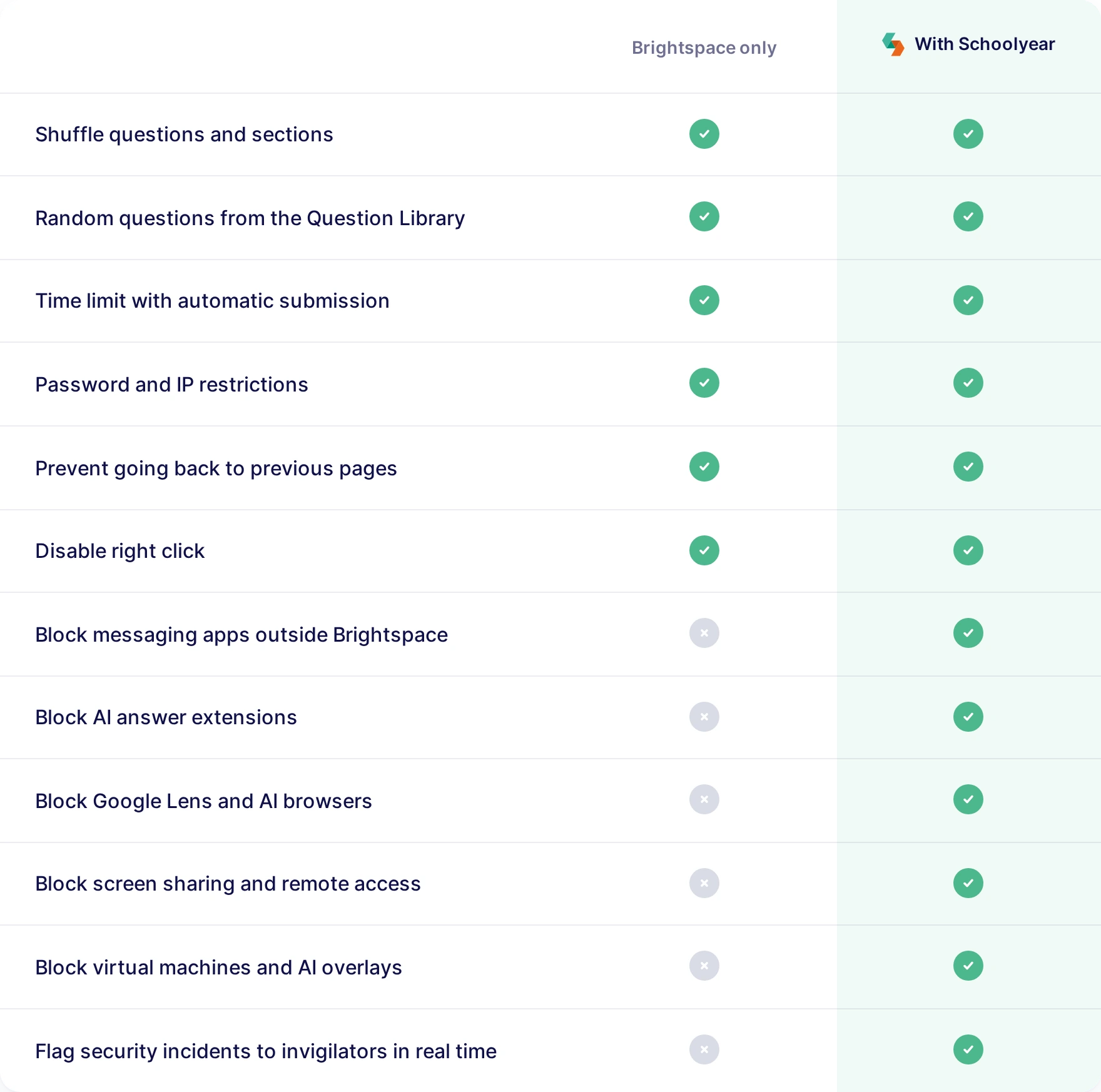
Extensions like D2L Quiz Assistant are made for Brightspace. A student double-clicks a question and gets a short AI answer right next to it.
Chrome ships with Google Lens, which can read a question straight off the screen and return an AI answer. Nothing to install.
Brightspace can't stop students from working together over WhatsApp, or even from letting someone else take over the laptop with remote desktop software.
Google Lens, answer extensions and messaging apps can’t be opened during the quiz. The tools you approve stay available.
Invigilators follow each student’s lockdown status in one dashboard and see security incidents the moment they occur.
Students open the quiz from their Brightspace course. Schoolyear secures the device before the quiz begins.
Brightspace decides who opens the quiz, from where and for how long. Once the quiz is open, the rest of the laptop is still available, AI included. Schoolyear closes it off for the length of the quiz.
.webp)
With Schoolyear linked to Brightspace, teachers pick which quizzes open in the secure workspace without help from their IT team. Students install Schoolyear once.
.webp)
Passwords, IP ranges and shuffled sections all play their part. None of them reaches beyond the quiz page.
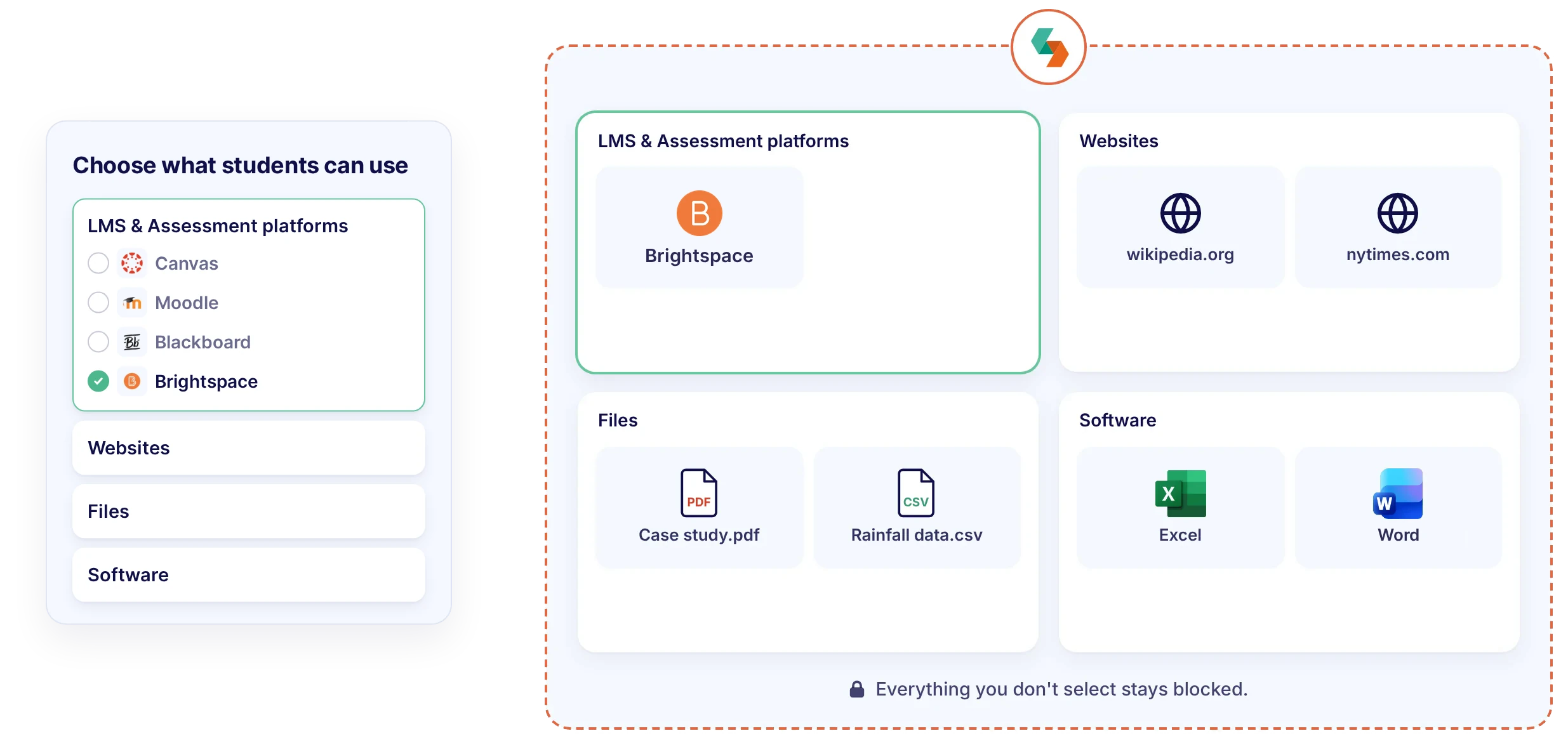
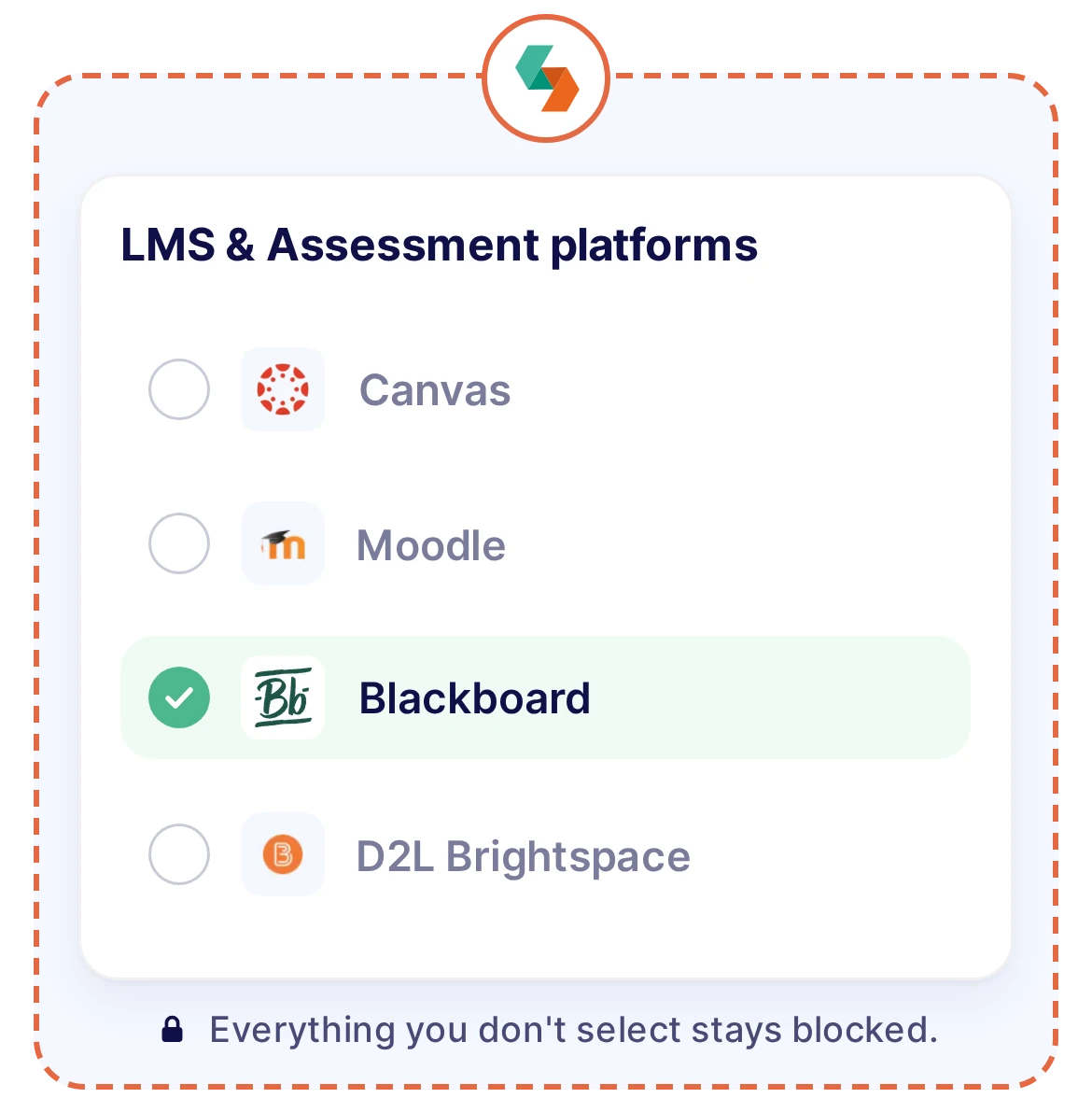
Let students work out answers in Excel, MATLAB or RStudio and enter them in Brightspace, with the course files and websites you allow. Nothing outside that list will open.


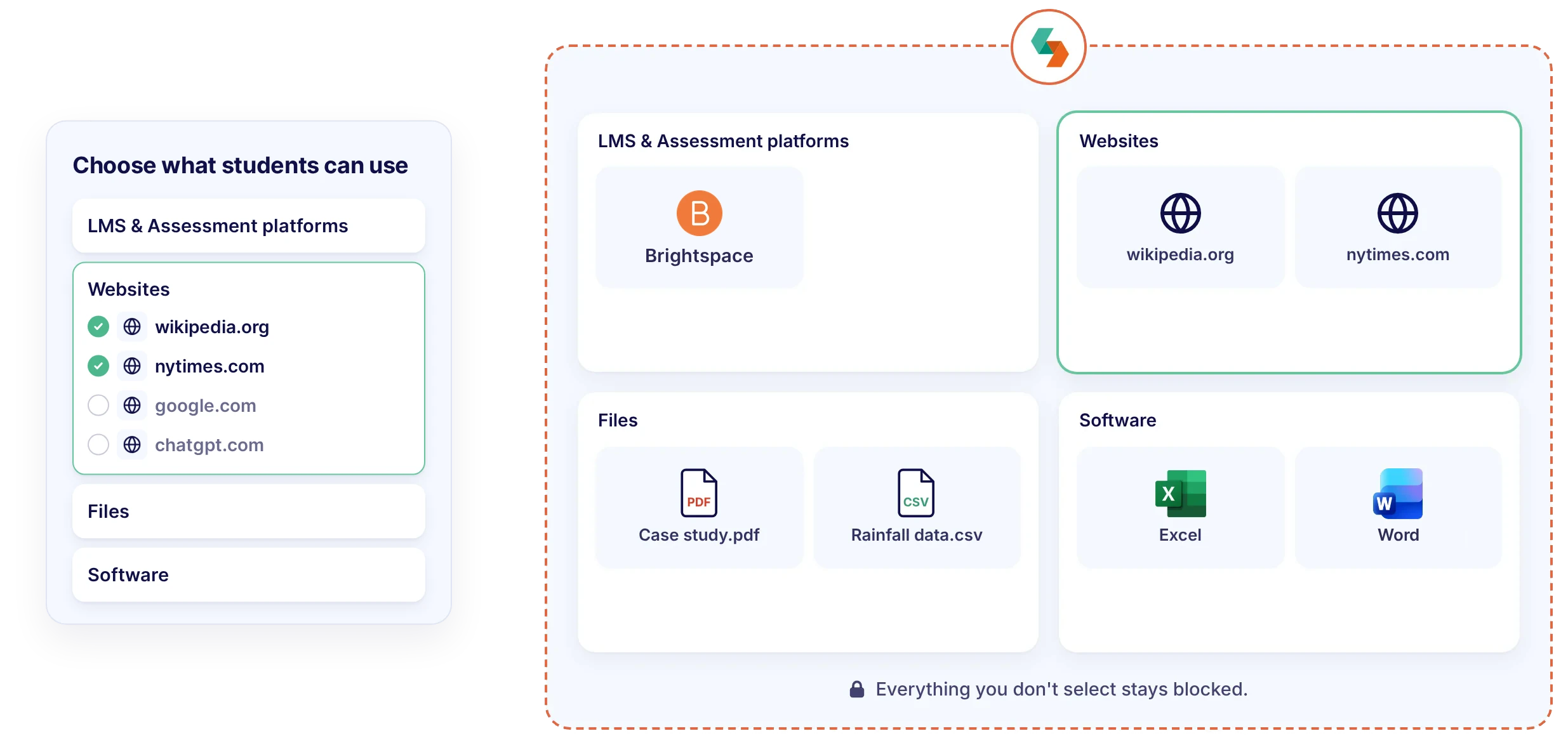
.webp)
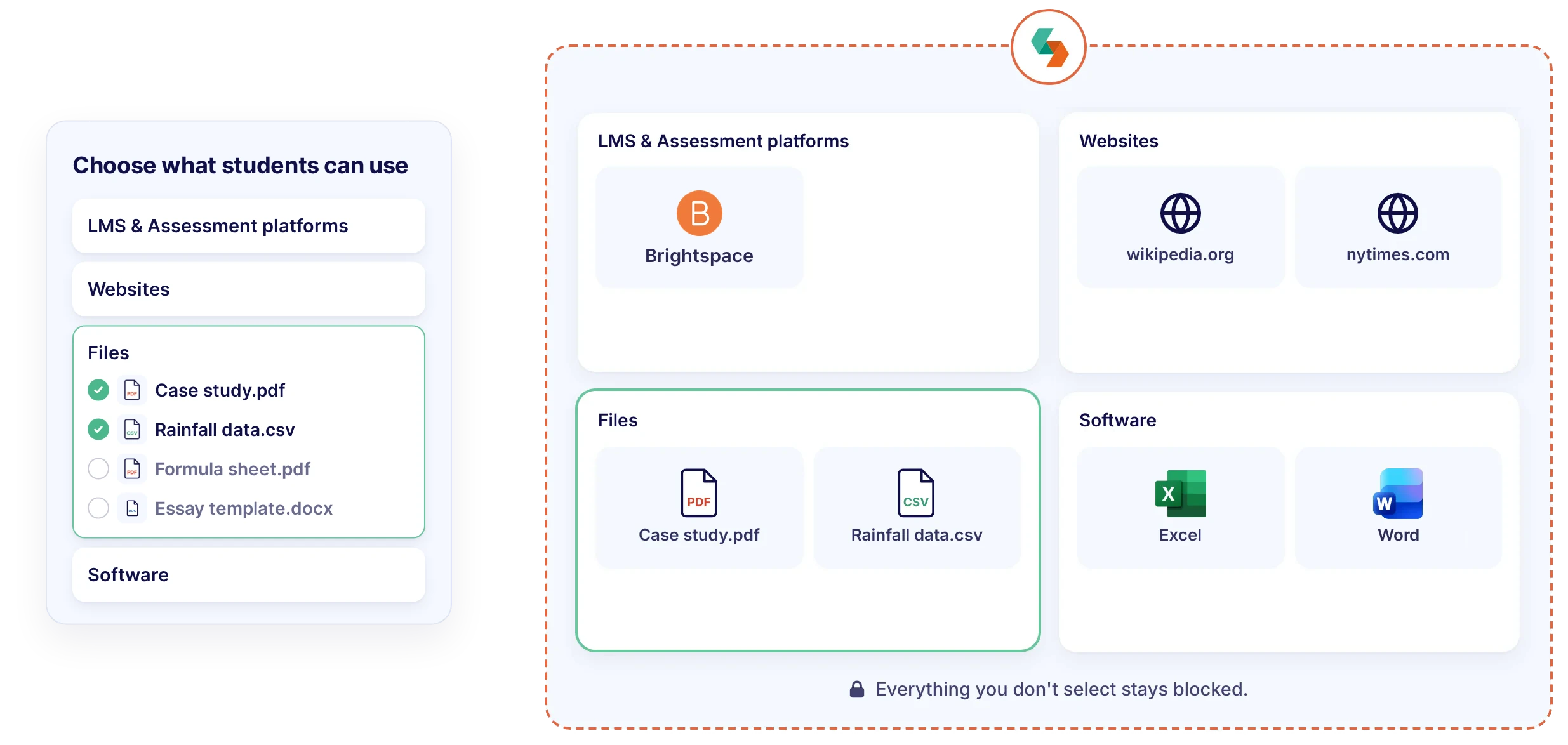
.webp)
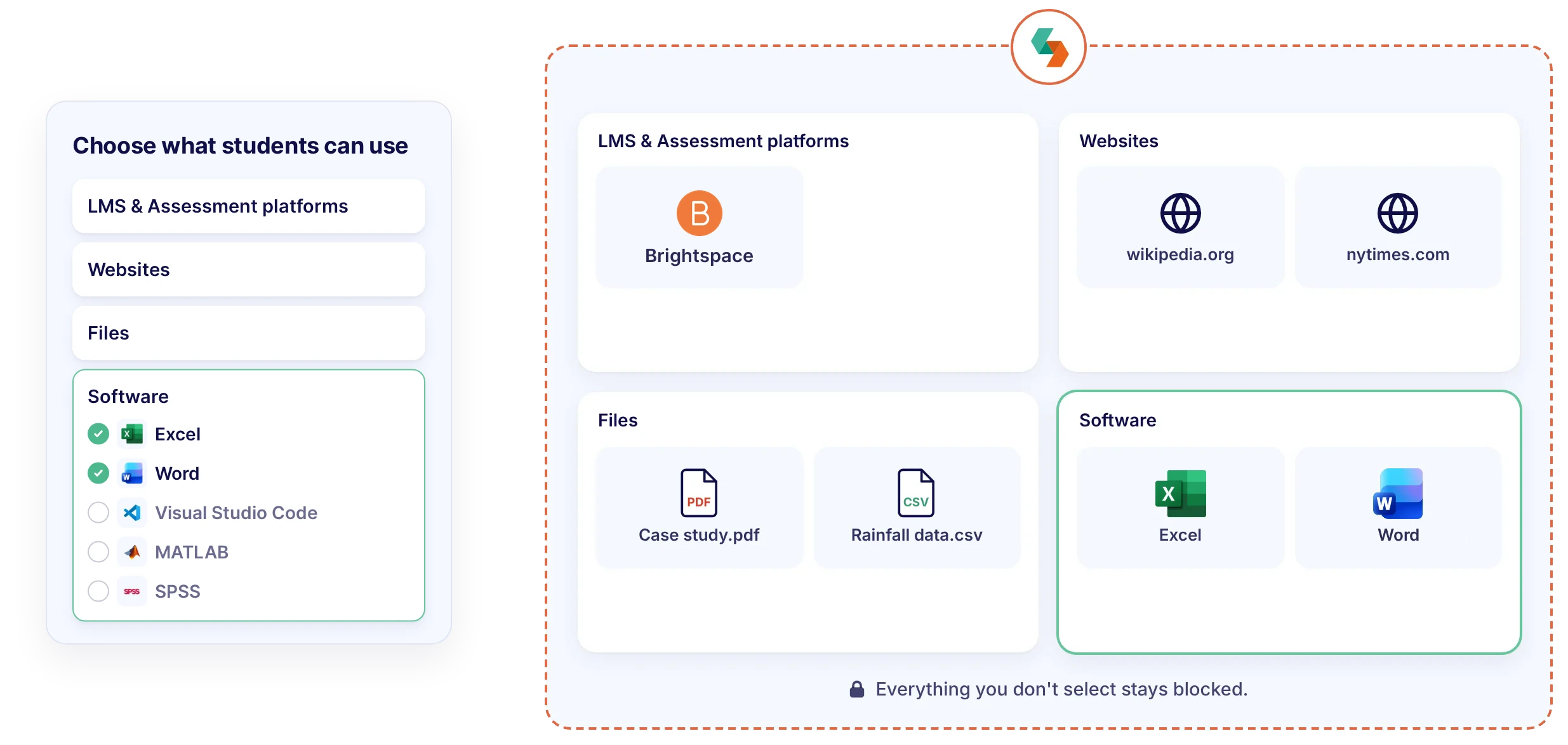
.webp)
That depends on your learning outcomes. Block AI when students must work on their own, or allow supervised AI when working with AI is part of the skill.

To assess what students can do on their own
.svg)
To assess how students work with AI
Allow support tools such as spellcheck, text-to-speech and screen magnification, so students can demonstrate their skills within a controlled assessment environment.
.svg)
To assess what students can do on their own
.svg)
To assess what students can do on their own
.svg)
To assess what students can do on their own
"With Schoolyear, students can use a desktop application during an exam and we can make it AI-proof. This way, we can assess if students have the necessary knowledge themselves."

"We sought a flexible solution for fraud prevention during exams on students' own laptops. Schoolyear allows us to use our educational spaces more flexibly and reduce the need for fixed PC rooms."
.jpg)
"We wanted to introduce safe and robust digital testing on campus. However, no combination of exam rooms had 800+ computers available at the same time. Schoolyear was the perfect and robust solution that we were looking for, as this allowed us to use the laptops of the students in regular exam rooms."


When AI is built into browsers, apps, and operating systems, a traditional lockdown browser is no longer enough. Schoolyear uses five security layers to keep assessments open to the tools you allow and closed to everything else.

Schoolyear replaces the student's desktop before the assessment starts. AI overlays, messaging apps, screen sharing, remote access: blocked, not detected afterwards.
Assessments run in a clean, purpose-built environment that students can’t customize, extend or bypass with browser tricks. The assessment never runs in the environment the student controls.
Applications and files used during the assessment don’t run locally on the student’s device. They’re isolated from personal storage, cloud drives and local AI features.
When a restriction is triggered or a bypass is attempted, it’s logged and signalled in real time. You can always see whether the lockdown is intact, during the assessment and afterwards.
Bypass techniques keep evolving, so Schoolyear’s security is updated as soon as new ones emerge. Updates are deployed automatically, with no action needed from students or educators.


Run exams on any school-managed device without the exam infrastructure you maintain today. No shared accounts or GPOs.
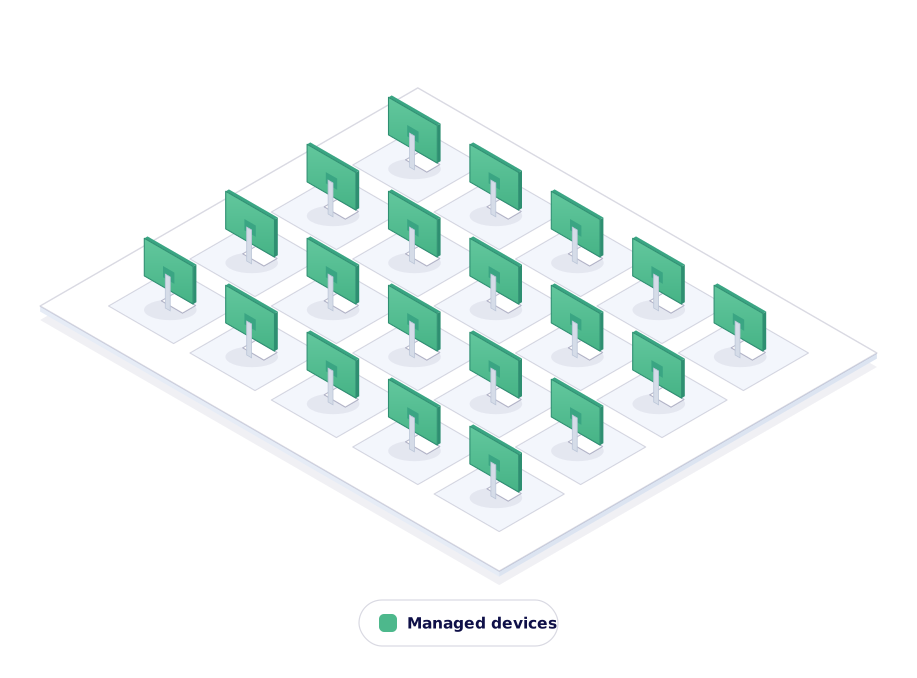
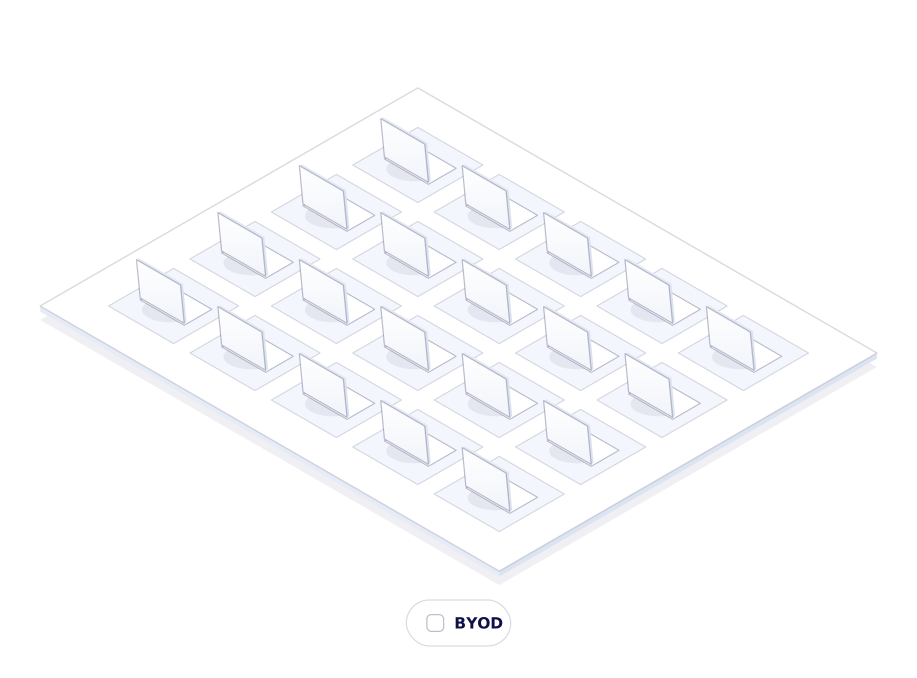
Turn any student laptop into a secure assessment seat. Students run a laptop check before exam day, so issues surface early, not on the day itself.
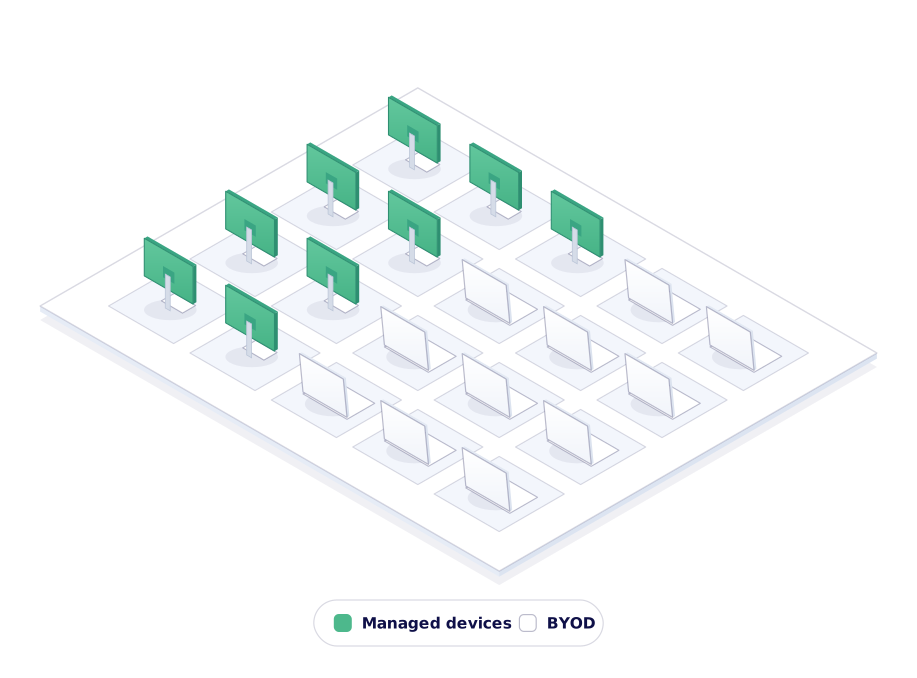
Mix managed and student-owned devices in a single session. Same assessment, same security, one dashboard.
We secure the assessment by locking down the device, not by filming the student or their screen. Nothing is recorded, so there is no footage to store, review or leak.

Anything outside the whitelist is blocked at system level. Cheating is stopped the moment it's tried, not spotted on a recording afterwards.

Students are not filmed or analyzed while they work. Less stress during the assessment, and no arguments afterwards about what a recording showed.
"With Schoolyear, the involvement of IT and related costs of overhead now has been reduced to almost nothing. Our teachers are back in control of their secure digital exams."

"With Schoolyear, students can use bookkeeping software, visit the exam site, open and fill in an Excel file, and then write a report about it in Word. All in a secured session, without access to AI or outside resources."
"Schoolyear makes it possible to do skills assessments with the use of extra applications, like Rstudio, Excel and Matlab. Before, this was only possible with managed computers."
Our experts are ready to help you explore
the benefits of Schoolyear.