Safe Exam Browser has no version for ChromeOS, and its developers say they currently lack the resources to build one. Schoolyear does work on Chromebooks, as long as they're managed by the institution. Students are locked into full-screen mode with access only to the resources you approve, from websites and files to desktop apps and even AI. Student-owned Chromebooks aren't supported, because the kiosk mode Schoolyear relies on is only available on managed devices.
Many educational institutions are looking for a way to secure digital exams on Chromebooks and therefore may consider using Safe Exam Browser. However, Safe Exam Browser does not offer support for ChromeOS.
In this article, we’ll explain why Safe Exam Browser doesn’t support Chromebooks and how Schoolyear offers an alternative.
Why Safe Exam Browser is not an option for exams on Chromebooks
Safe Exam Browser supports Windows, MacOS, and iOS. There is currently no version for Chrome OS, as their development team confirms. Daniel Schneider, lead developer at Safe Exam Browser, explains why this is the case: “Chromebooks are not used in education in our region of Europe and we currently don't have resources to develop and maintain such a version.”
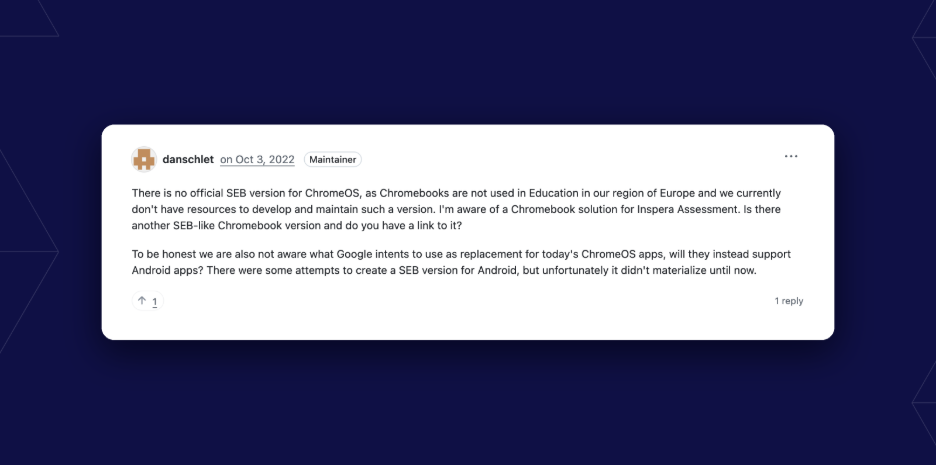
Whether Safe Exam Browser is planning on developing a version for ChromeOS in the future is unknown.
How Schoolyear secures exams on managed Chromebooks
Schoolyear provides a controlled environment for digital assessments and supports institution-managed Chromebooks.
Students are locked into full-screen mode with all other applications closed. They only get access to pre-approved resources, such as websites, files, desktop applications, and even AI. Everything else is automatically blocked.
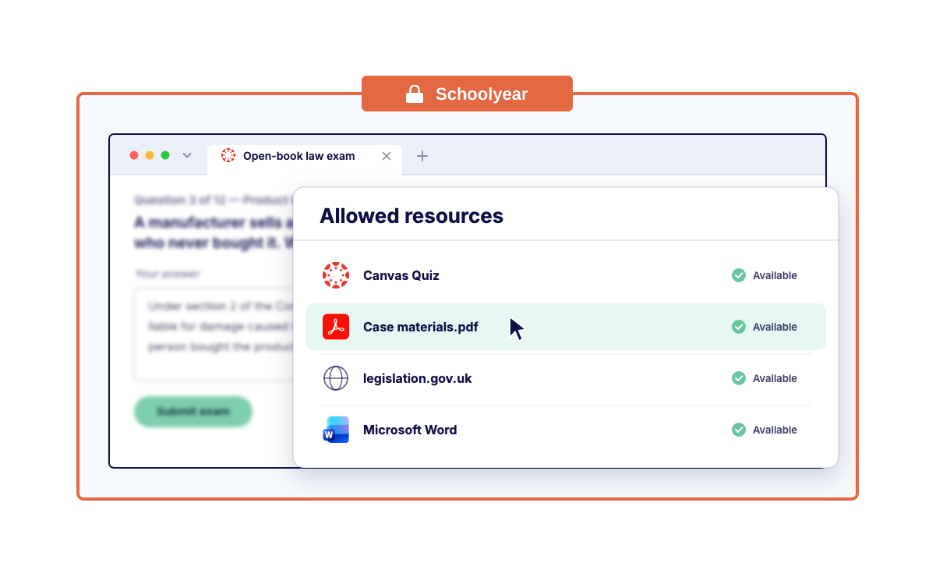
With Schoolyear, educators get to create rich assessments – from open book exams to coding assessments - while keeping full control over what students can and cannot access.
The student experience
The student workflow is straightforward:
- Sign out of the Chromebook's regular user session.
- Open Apps on the sign-in screen and select Schoolyear Exams.
- Choose the LMS or assessment platform prepared by the institution.
- Log in to the LMS or assessment platform and start the exam.
For Chromebooks that are fully dedicated to digital assessments, the institution can even configure Schoolyear to open automatically.
Why Schoolyear doesn’t work on student-owned Chromebooks
A key requirement for Schoolyear to work on a Chromebook is that the device is managed by the institution.
Chromebooks support kiosk mode, which makes them suitable for a solution like Schoolyear. However, this functionality is only available on managed Chromebooks. Private Chromebooks owned by students don’t have access to this kiosk mode, which is why the Schoolyear environment can't be opened there.
Learn more about Schoolyear in a short demo
Share this



.avif)