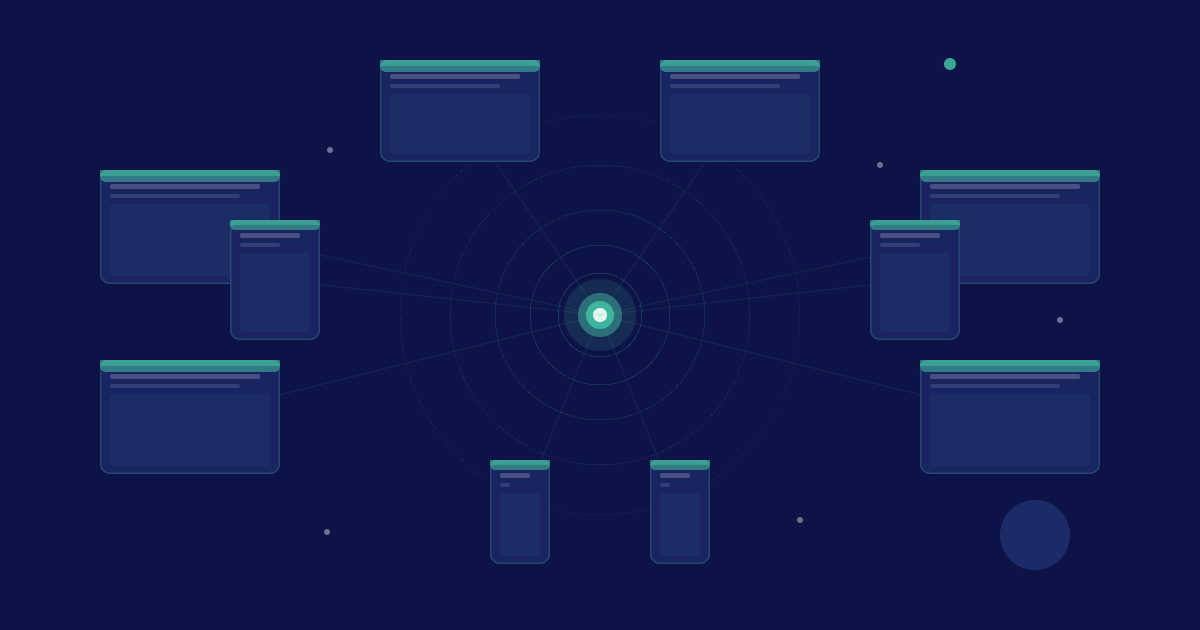
A lockdown browser limits what students can access on their device during a digital exam to the exam and approved resources. Legacy lockdown browsers can’t verify that the lockdown stays intact or securely provide desktop applications. The Safe Exam Workspace was built to close those gaps.
A lockdown browser is exam-security software designed to restrict what students can access on their device during a digital assessment. It keeps the exam and any approved web resources available, while blocking other websites, applications, and common actions such as task switching, copying, and screen capture.
A regular browser such as Edge or Chrome leaves the entire internet and everything on the device available throughout an exam. Especially with AI-powered browsers growing in popularity, locking down the device during an exam is a must.
This guide covers what a lockdown browser is, how it works, where legacy lockdown browsers reach their limits, and how the Safe Exam Workspace addresses those limitations.
What is a lockdown browser?
A lockdown browser opens a digital exam inside a controlled environment. It gives students access to the exam and the web resources you approve while blocking access to the rest of the device.
A lockdown browser is used to prevent cheating during in-person digital exams. Without one, cheating is increasingly accessible to students, even with supervisors in the room. Cheat sheets, Google, and AI tools are only a click away.
A supervisor can watch a room and spot obviously suspicious behavior, such as reaching for a phone. However, you can’t expect them to see what is happening on every screen and in every window. A lockdown browser adds technical prevention to human supervision, so you are not relying on either one alone. The supervisor watches the room, while the software controls the device.
A lockdown browser and proctoring software serve different purposes. A lockdown browser restricts what students can do on their device, while proctoring observes or records the student, their screen, or both. Some products combine these approaches, but a lockdown browser does not necessarily involve webcam monitoring or screen recording.
LockDown Browser® is a registered US trademark of Respondus, Inc., one well-known provider in this category. In this article, we use “lockdown browser” descriptively for the wider category of software solutions, not as the name of a particular product.
How a lockdown browser works
A lockdown browser is not a normal browser with a few settings switched off. Instead, it is an application that takes control of the exam device for the duration of the assessment. Three things happen:
- It connects to your assessment platform. The educator flags the exam in the LMS or assessment platform as requiring the lockdown browser. The exam then opens only inside the lockdown browser, and any attempt to access it through Chrome, Safari, or Edge is refused.
- It takes over the screen. The exam runs full-screen in kiosk mode with no way to switch tabs. Task-switching shortcuts such as Alt+Tab and Cmd+Tab are disabled, so the student cannot move to another window.
- It restricts the device around the exam. Depending on the type of lockdown solution, it blocks unapproved websites, prevents other applications from launching, disables copying, pasting, printing, and screen capture, and attempts to detect and block virtual machines, screen-sharing tools, and remote-access software.
For a web-based quiz where the only thing a student needs is the exam itself, this model works well. Its limitations become more apparent when exams require additional resources or someone deliberately attempts to defeat the lockdown.
Where legacy lockdown browsers reach their limits
Most legacy lockdown browsers were built for a narrower purpose than exams now demand. Three limitations matter most.
1. Bypasses and AI cheating tools
Defeating a lockdown is no longer specialist work. A commercial market now sells lockdown browser bypasses as ordinary consumer software. These include AI overlays that automatically read and answer exam questions, virtual machines, and even remote connections that allow someone outside the room to take the exam.
This has only become a serious problem in the past few years, and many legacy lockdown browsers have struggled to keep up.
We reviewed this growing market of lockdown browser bypasses in detail—including the vendors, pricing, and four main bypass methods—in a classified report for verified staff at educational institutions. You can request access here.
2. No continuous verification
Another issue is the lack of continuous verification. Because most legacy lockdown browsers were not built at a time when bypasses were so easy to find, they do not verify whether the lockdown remains intact throughout the exam.
If a student manages to bypass the lockdown, no signal reaches the supervisor. You cannot respond to a breach if you are not alerted.
3. Applications and documents
An increasing number of digital exams require students to use desktop applications. Whether it is to assess coding skills in a real IDE or bookkeeping skills in a tool like Excel, students need access to the tools they used in class while AI assistants and other cheating routes inside those applications remain blocked.
Legacy lockdown browsers cannot securely provide this access. They can either block an application or allow it, leaving the cheating routes inside and around the application open.
How the Safe Exam Workspace solves these problems
The Safe Exam Workspace is an exam-security solution and an alternative to legacy lockdown browsers.
Applications and documents
Instead of simply allowing a desktop application to run alongside the exam, the Safe Exam Workspace provides it inside an isolated environment. The approved application is separated from the student’s personal device, files, cloud accounts, extensions, and AI tools. This removes the cheating routes inside and around the application instead of allowing it with all its normal connections intact.
For example, you can let students work in Excel without giving them access to personal files, OneDrive, Copilot, or other unapproved resources.
Because of this, the Safe Exam Workspace can secure a wide variety of digital assessments against cheating:
- LMS quizzes – Give students access to an online test in Canvas, Moodle, Blackboard or Brightspace while blocking everything else.
- Open-book exam – Provide approved PDFs and source materials, or let students bring their own files, without opening access to the rest of the device.
- Writing exam – Let students write essays and answer open questions without ChatGPT, Grammarly, or text pasted from outside the exam.
- Spreadsheet exam – Provide Microsoft Excel for accounting or finance, isolated from personal files, OneDrive, and Copilot.
- Coding exam – Let students program with Python in a real IDE such as Visual Studio Code inside a controlled environment.
Educators enable these resources themselves from inside the platform they already use. IT is only involved during implementation.
Security against lockdown browser bypasses
The Safe Exam Workspace’s security is built across five layers. Together, these layers prevent common bypasses, verify that the exam environment remains intact, and allow new threats to be addressed quickly.
- Prevent. By default, every resource you have not approved is blocked at the system level, including internet access, background applications, communication tools, and AI.
- Separate. The exam runs in a clean, purpose-built environment, outside of the personal browser, that the student cannot customize or extend, and that cannot be bypassed using the usual browser tricks.
- Isolate. Approved applications and files run separately from personal file explorer, connected cloud drives, and embedded AI extensions, while exam content cannot leak out.
- Verify. Attempted bypasses are logged and surfaced to invigilators in real time through the exam dashboard.
- Respond. New bypass techniques are patched centrally and deployed automatically, with no action required from students or staff. This keeps the gap between discovering a bypass and mitigating it as short as possible.
All of this works without monitoring students. There is no webcam monitoring, screen recording, or behavioral surveillance.
Conclusion
A lockdown browser gives students access to an online exam and approved websites while blocking access to everything else. However, legacy lockdown browsers were not built for the age of AI, where competencies are increasingly assessed in person and new lockdown bypasses are developed at high speed.
Today, institutions need to assess a wide variety of competencies in a controlled setting, with confidence that students are not using AI or other unauthorized assistance.
See how Schoolyear creates an AI-proof exam workspace across websites, files, and applications. Request a demo.
Share this



.avif)