.jpg)


Students learn Excel by using Excel: calculating costs, analyzing financial data, and building models that reflect real business decisions. But when the exam arrives, students are asked questions about the software rather than showcasing their skills in the software itself.
The reason is rarely pedagogical. It’s practical. Running an exam inside real software like Excel raises questions about cheating, security, and fairness. If students are working inside a full desktop application on their own laptops, how do you stop them from opening their own files or using built-in AI tools?
So some institutions compromise. They move the exam away from the real environment where the skill is performed.
But that compromise is increasingly difficult to justify. If the goal is to assess students on realistic, practice-oriented tasks, the most direct approach is to give them the tools they would actually use, including Excel.
In this article, we look at why more institutions want exams to take place in Excel and what it takes to run those exams without enabling cheating.
Where cheating happens in an Excel-based exam
Once Excel enters the exam environment, a new set of problems appears. Excel is not just a calculation tool. It’s a fully featured application connected to the operating system, the internet (Office365), and increasingly, AI.
That creates several obvious paths for cheating.
AI assistants and add-ins
Excel includes an AI assistant called Copilot, which can generate formulas, explain spreadsheet logic, or analyze datasets automatically. Beyond Copilot, Excel supports a wide range of third-party add-ins through the Office Add-ins store, including AI writing tools, Wikipedia, and various data services. These add-ins can introduce capabilities that go well beyond standard spreadsheet functionality.
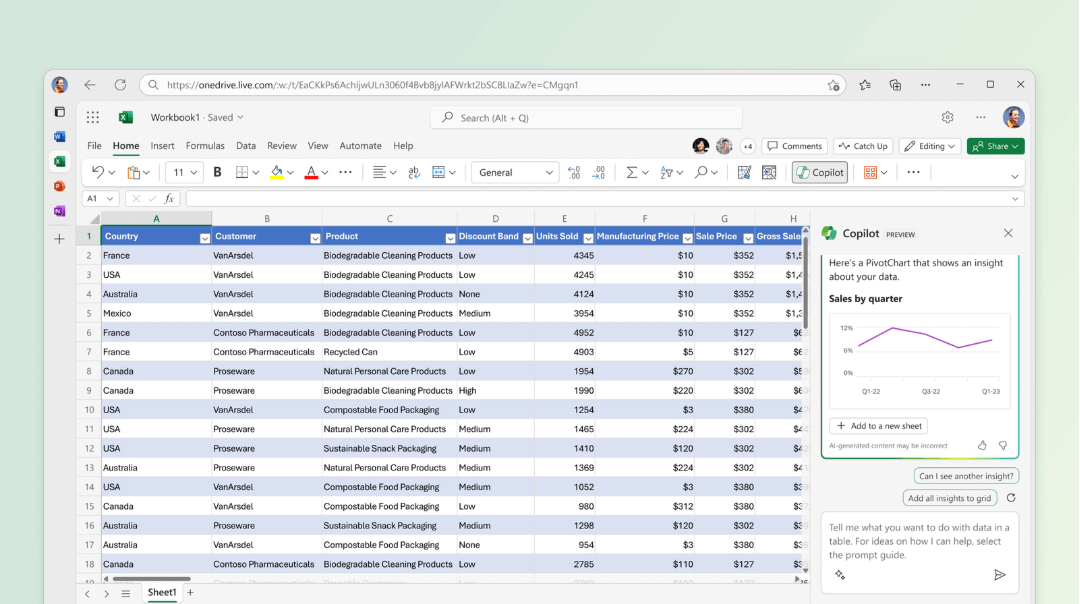
Blocking ChatGPT in the browser does not prevent AI tools from appearing inside the application itself, nor does it restrict access to add-ins that connect to external services.
Access to personal files
When students run Excel on their own laptops, the application has direct access to the device’s file explorer and OneDrive cloud storage. That means students may be able to open previous coursework, reference materials, or personal cheat sheets.
Even features like “recent files” can expose documents that were opened earlier.
Copying exam materials
When exam files such as spreadsheets or datasets are opened locally, they must exist temporarily on the student’s device. Once those files exist, they can potentially be copied, shared, or redistributed.
For instructors who reuse question templates across semesters, this becomes a serious concern.
Why traditional locked down browsers can't secure Excel exams
Many exam setups attempt to address these risks by combining a locked down exam browser with a small list of allowed desktop applications. This method is called local application whitelisting. Excel is whitelisted so students can use their personal Excel version on their laptop during the exam, while other programs remain blocked.
On the surface, this seems reasonable. The browser controls the exam environment, and Excel remains available for the task itself.
But there’s a structural flaw in this approach.
Once Excel is allowed to run locally on the student’s laptop, the exam browser is no longer the only application interacting with the operating system. Excel communicates directly with the system, the network, and the file system. The lockdown layer can’t control this.
Securing an Excel exam with a traditional locked down browser can work in tightly managed computer labs, where the institution controls the entire device and can enforce restrictions through system policies and network rules.
On student-owned laptops, those controls simply don’t exist, because students are the administrators of their own devices.
How to securely conduct exams in Excel
The core principle for securely running Excel-based exams on BYOD (Bring Your Own Device) is simple:
The application should not run on the student’s own device.
Instead of executing Excel locally, the application has to run in a controlled environment that the institution manages. The student’s laptop becomes little more than a window into that environment.
This is typically achieved using virtualized desktops, often implemented through Virtual Desktop Infrastructure (VDI).
In a virtualized exam setup:
- Excel runs on a computer in the cloud
- Students connect to this computert remotely from their browser
- The laptop only sends keyboard and mouse input
- The exam workspace is isolated from the local device
Because the entire environment is controlled, institutions can enforce rules that would be impossible on BYOD laptops.
For example:
- Internet access can be restricted or disabled
- Local file systems are completely isolated
- AI features and add-ins can be disabled
- Software versions are identical for every student
- Hardware performance differences disappear
If a student’s laptop crashes during the exam, the cloud PC continues running. The student can reconnect from another device and continue working.
This approach removes the structural weaknesses of local execution while still allowing students to demonstrate their real software skills.
How Schoolyear helps institutions run Excel exams securely
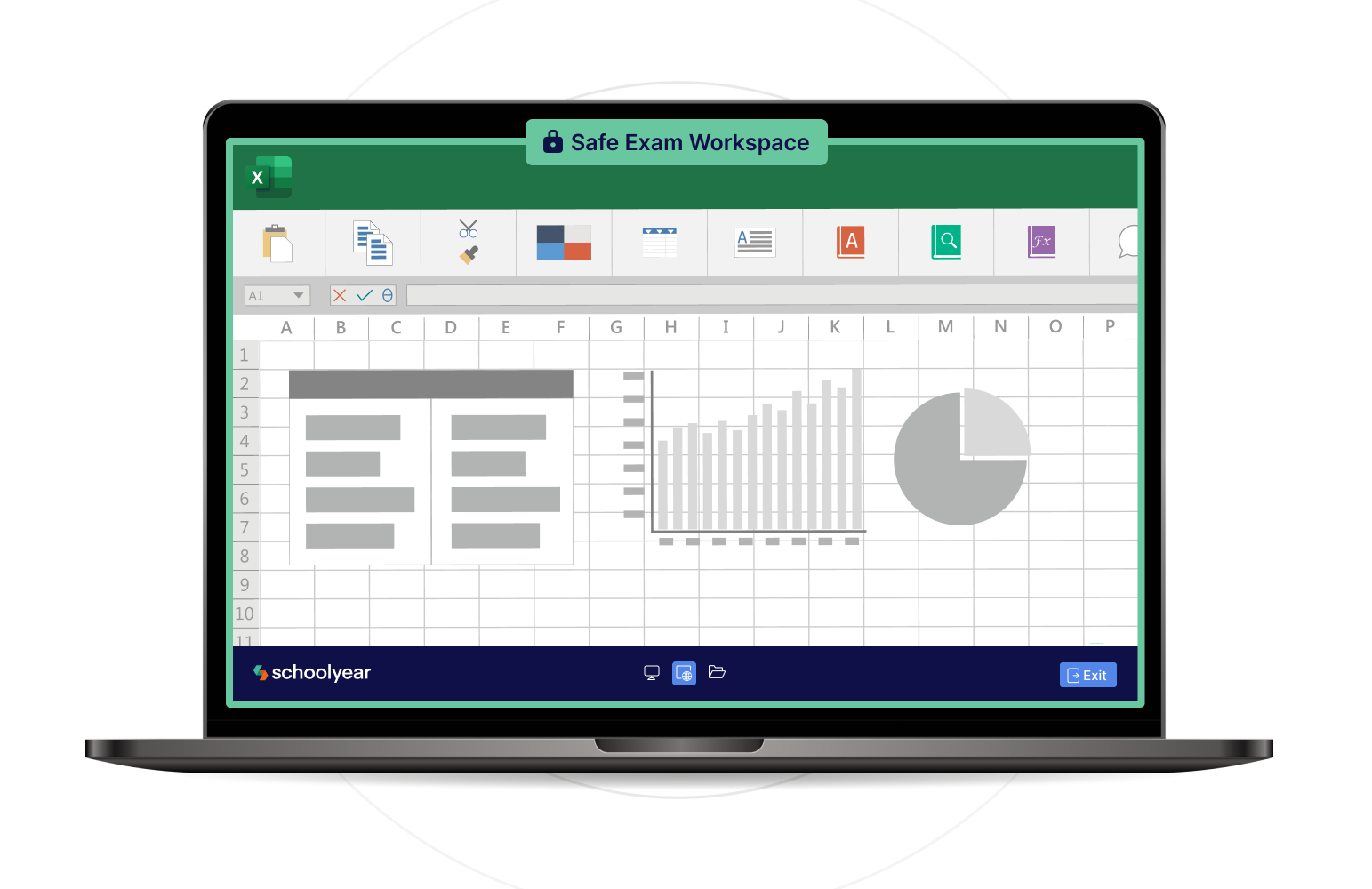
Schoolyear’s Safe Exam Workspace applies this principle to application-based exams.
When an exam begins, the student’s device enters a controlled exam mode. Unauthorized applications can’t launch, system shortcuts are disabled, and screen-sharing or remote desktop tools are blocked.
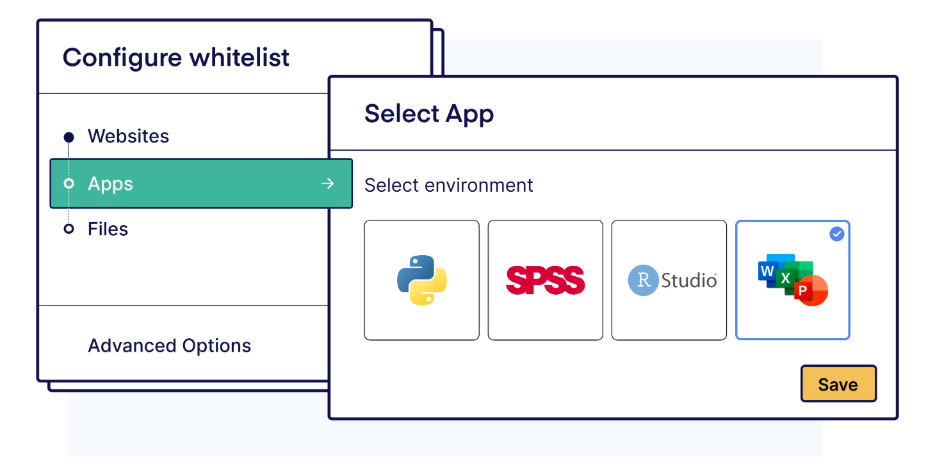
For Excel-based assessments, the spreadsheet application runs inside a secure virtual environment rather than on the student’s laptop.
That means:
- students cannot access personal files
- internet access inside Excel can be restricted
- AI assistants and add-ins can be disabled
- every student uses the same Excel version and environment
The student still works in real Excel. They build formulas, analyze datasets, and construct spreadsheets exactly as they would during their coursework.
But the exam environment remains controlled.

Want to see how secure Excel exams work in practice?
If your institution wants to assess real spreadsheet skills without opening the door to cheating, the safest approach is to run Excel inside a controlled virtual exam workspace.
Schoolyear’s Safe Exam Workspace was built specifically for this type of application-based assessment.
You can see how it works in a short demo.