.jpg)


Many institutions want to assess the real-world skills of their students during digital assessments. During classes, students write code in Python, analyze datasets in SPSS, or perform financial analyses in Excel. It only makes sense to have them use those applications during their exams too.
To make digital exams scalable, many institutions increasingly rely on Bring Your Own Device (BYOD) setups. By allowing students to use their own laptops, institutions avoid the cost, logistics, and capacity limits of dedicated computer labs. Exams can be organized in regular classrooms, for larger groups, and with greater scheduling flexibility.
BYOD setups work well for web-based exams. However, once desktop applications are required, preventing cheating becomes significantly more complex.
A common approach is local application whitelisting: running a locked down browser while allowing desktop applications (like Excel or RStudio) to open during the exam.
In managed computer labs, this can work under strict conditions. On BYOD, it's impossible to guarantee security with local whitelisting.
This article explains why local whitelisting on BYOD is fundamentally insecure, why it creates unequal exam conditions, and what a secure alternative looks like.
TL;DR
Local application whitelisting on BYOD is not a secure way to prevent cheating during exams. By ‘local applications’, we mean software installed directly on a student’s own laptop.
If desktop applications run locally on a student’s own device, they can:
- Access personal files (e.g., either through ‘recent files’ or file explorer in Word)
- Use AI features inside applications (such as Copilot in Excel and third-party add-ins)
Whitelisting locally installed applications is traditionally uses as a method in managed computer labs, where the IT department enforces system-level policies. On student-owned devices, however, this type of enforcement is not possible, making this approach insecure.
If you want to assess software skills securely on BYOD, you need a fundamentally different approach. Instead of relying on software installed on the student’s own laptop, applications should run in a controlled virtual environment that is isolated from the physical device.
What is local application whitelisting?
Local application whitelisting is a method used by traditional locked down browsers to allow specific desktop applications during a locked exam session.
The typical setup works like this:
- The student launches a locked down exam browser.
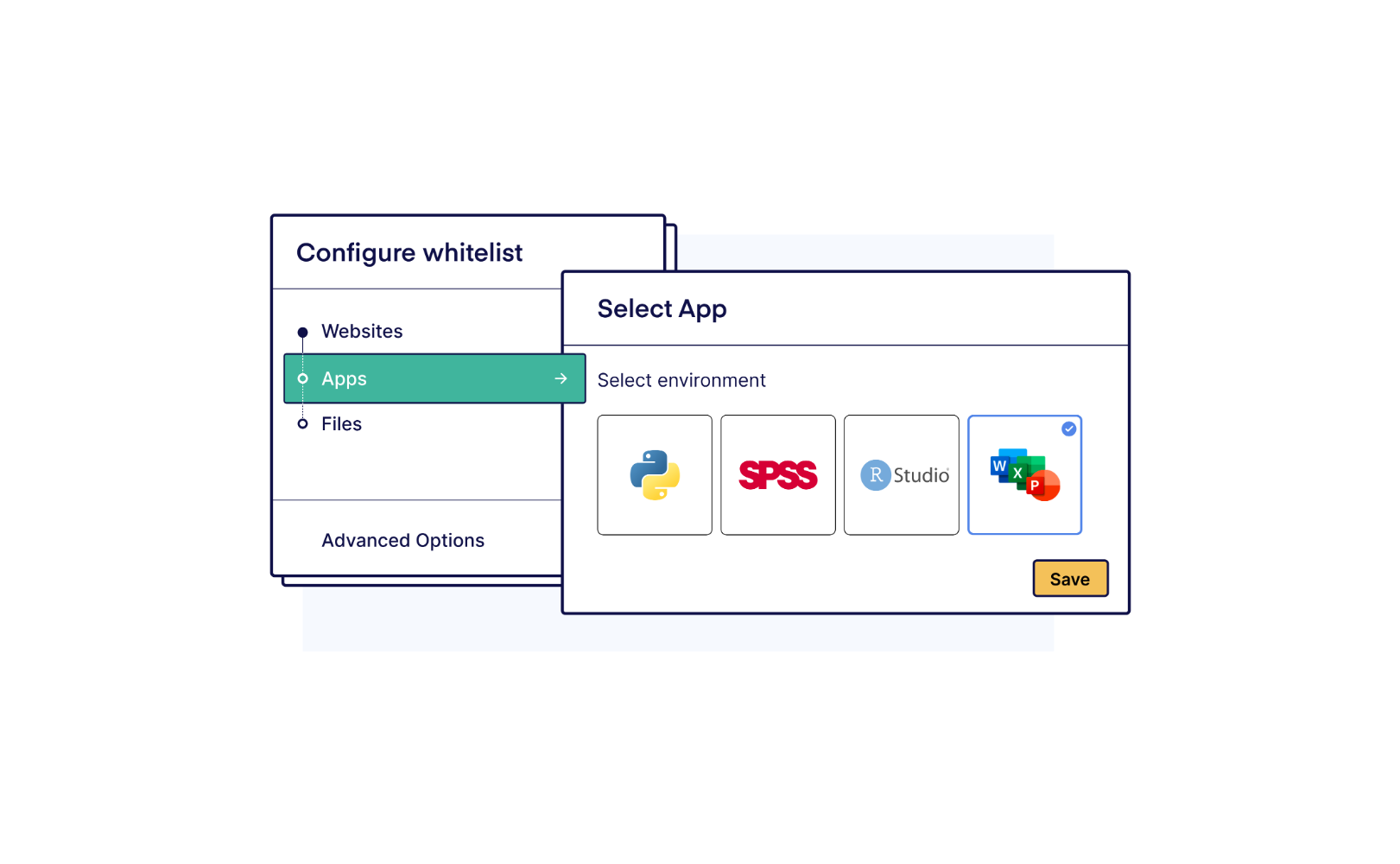
- Certain applications (e.g. Excel, Word or RStudio) are whitelisted, meaning the student can use them freely during the exam.
- All other applications remain blocked.
This allows students to work with real software during the exam.
This method works well when exams are administered on managed computers, where only IT staff have administrator access. With this setup, institutions can set up policies that prevent access to the internet, add-ins, and local files. It was once introduced by Safe Exam Browser with these conditions in mind. Even their documentation acknowledges that this setup is not secure for BYOD devices.
Why local application whitelisting on BYOD can’t prevent cheating
1. The locked down browser no longer controls the system
Locked down browsers secure exams by blocking access to other websites and applications during the exam.
When additional local applications such as Excel are allowed, the locked down browser is no longer the only application interacting with the operating system. Those additional whitelisted applications now communicate directly with the system as well.
This creates a problem: the lockdown layer can no longer fully control how the system behaves. Once additional applications run on the system, the exam browser can’t restrict what students do inside those programs.
On managed devices, the IT department can enforce this with system-level policies (called Group Policies), such as restricting internet access , blocking access to local drives and network shares, and even blocking AI add-ins. On BYOD , where the student will always be the device administrator, you simply can't enforce the same controls.
2. Desktop applications have internet access
Even if the locked down browser blocks access to certain websites, whitelisted desktop applications often still include features that can access the internet.
Examples include:
Excel
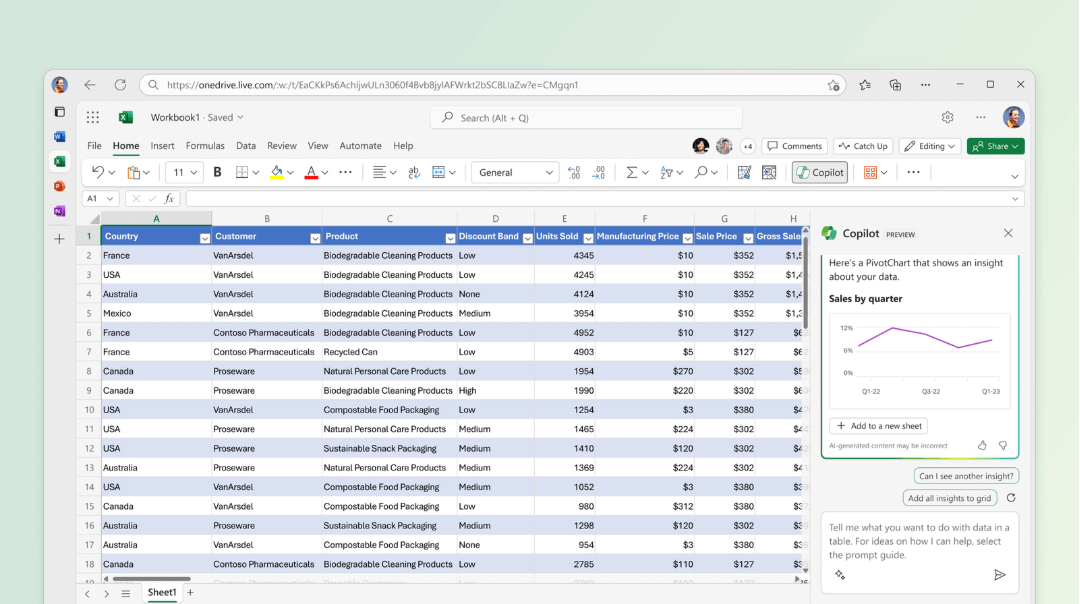
- AI assistants such as Copilot: Students can open Copilot inside Excel and ask it to generate formulas, analyze datasets, or explain results for them
RStudio
- Installing packages from the internet: Students can go to Tools → Install Packages or use the install.packages() command to download packages that are now allowed, such as packages that contain ChatGPT.
- Online documentation: Students can open the Help panel to access tutorials, examples, and documentation that link to resources on the internet while working
Visual Studio Code
- Extensions: Students can install extensions that provide AI coding assistance, automated code generation, or integrations with external services, allowing them to receive help generating solutions during the exam.
- Integrated terminal: The built-in terminal allows students to run system commands, execute scripts, or use external tools that are outside the intended exam environment.
- Network access through code: Programs can send HTTP requests to websites or APIs, allowing code to retrieve information or interact with external services on the internet during the exam.
Any application with internet access can potentially be used to communicate with others — for example, through web-based messaging services, email clients, or APIs — allowing students to seek outside help during the exam
Blocking websites like ChatGPT or Claude inside the exam browser doesn’t prevent students from accessing AI tools or online resources inside applications. Because the applications communicate directly with the operating system and make network requests independently of the browser, they can reach external services outside the locked browser environment.
3. Students can access their files
A key priority when securing digital exams is cutting off access to their files. The last thing you want is students being one click away from their cheat sheet.
But when students work in whitelisted applications, those applications can access the device’s file system and connected cloud storage.
This allows students to:
- Open personal folders
- Access synced cloud drives such as OneDrive
- View “recent files” inside the application
4. Exam content can be copied and shared
When exam materials are opened locally on a student’s device, they must be temporarily stored on that device.
Once those files exist on the device, they can potentially be copied, saved, or shared outside of the exam session.
If exam content spreads outside the exam session, institutions often need to redesign the assessments or datasets for future exams. This increases the workload for instructors and makes it harder to reuse exam materials.
5. BYOD breaks the level playing field
In a managed computer lab, institutions can ensure every student works in the same technical environment:
- Identical hardware
- The same operating system
- The same software version
- Equal computing performance
On BYOD devices, this is impossible. Students bring laptops with different:
- CPU performance
- Memory capacity
- Operating system versions
- Application versions
For browser-based exams, BYOD typically works well because the workload runs entirely in the browser and is less dependent on the student's device performance. However, when exams require applications like SPSS, MATLAB, or large Excel models, performance differences can directly affect the exam experience.
Equal assessment conditions are a core academic principle. When exams run locally on BYOD devices, institutions can’t make that possible.
6. Stability and data loss risks
When students work in locally installed applications, their work is stored on the device itself.
If a laptop crashes, freezes, or loses power during the exam, the work inside that application may be lost. In that situation, the student loses a part or all of their exam progress.
This creates difficult situations for both students and instructors. A student may suddenly lose their work in the middle of the exam, while instructors have no reliable way to recover what was completed.
Why whitelisting can be secure on managed devices, but not on BYOD
It's important to emphasize the difference between managed computer labs and BYOD environments.
In managed labs, institutions control the entire system. This allows IT departments to enforce strict restrictions:
- Devices are centrally configured.
- Group policies (GPOs) enforce system restrictions.
- Internet access can be restricted at network level.
- Shared exam accounts can be tightly controlled.
- Software versions are standardized.
Because the institution controls the device, it’s possible to tightly restrict how applications interact with the operating system, network, and file system.
On BYOD devices, this level of control does not exist. Students are the administrators of their own laptops, which means institutions cannot reliably enforce system-level restrictions.
As a result, local application whitelisting becomes ineffective.
Whitelisting only works when you fully control the device environment.
The structural alternative: virtualized applications
We've established the problem: running applications locally on BYOD devices during exams introduces significant risks. But that doesn't mean BYOD exams with applications are out of the question.
The solution is virtualization.
Instead of running applications on the student’s laptop, the software runs on a virtual desktop hosted in the cloud. The student’s device only displays the remote environment and sends keyboard and mouse input.
In practice this means:
- The applications run on cloud-hosted virtual machines
- The student’s device acts only as a screen and input terminal
- No exam applications run locally on the student’s laptop
This approach is commonly implemented using Virtual Desktop Infrastructure (VDI), where students connect to a virtual computer hosted in a secure cloud environment.
Because the entire environment runs in a centrally managed infrastructure, institutions can:
- Restrict internet access
- Isolate the file system
- Disable AI features
- Standardize software versions
- Ensure consistent performance for all students
If a student’s device fails during the exam, the virtual environment continues to run. The student can reconnect from another device while their work remains intact.
Virtualization removes many of the structural limitations of running applications locally on student-owned devices.
How Schoolyear secures application-based exams with virtualization
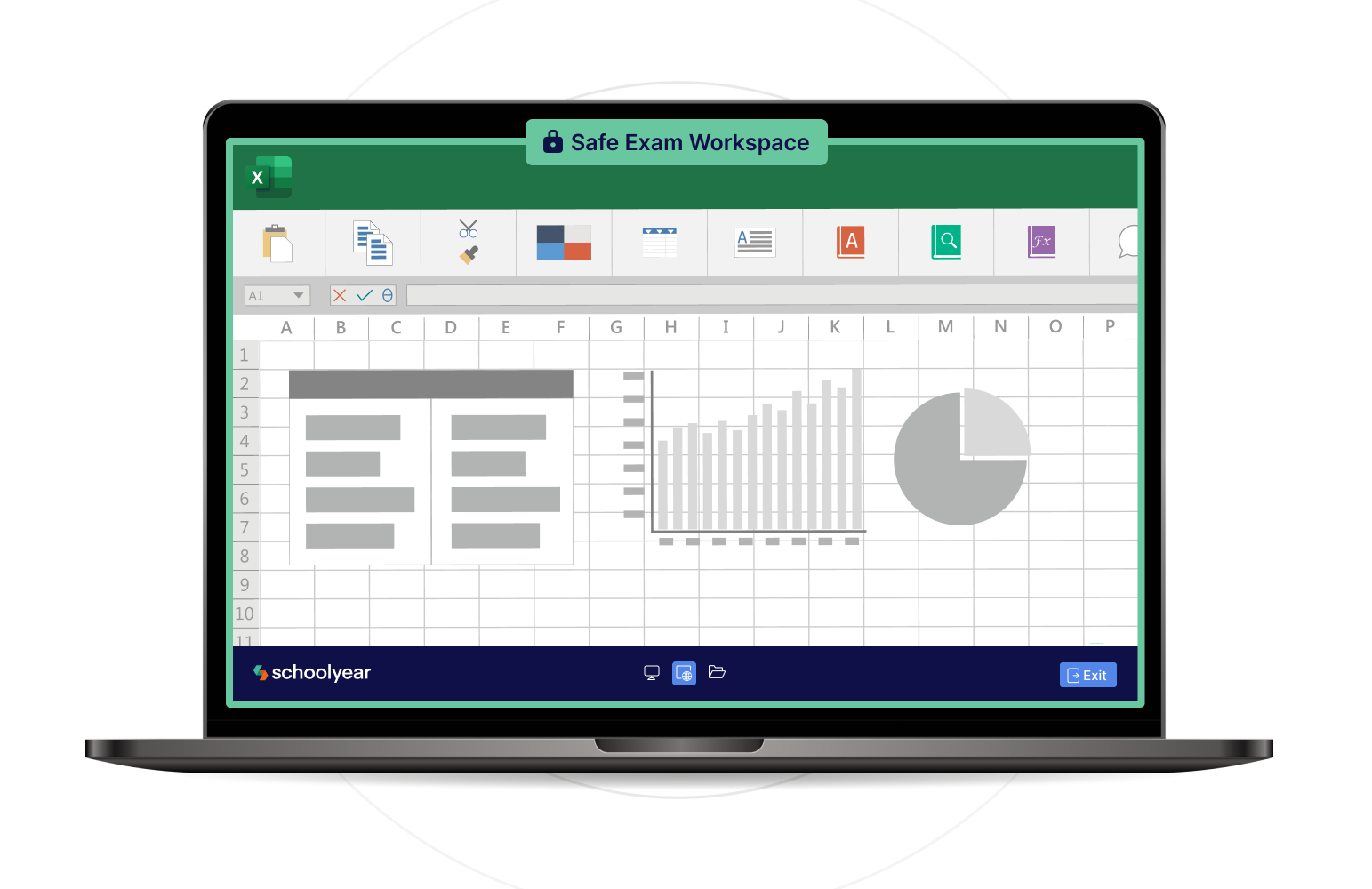
Schoolyear’s Safe Exam Workspace uses virtualization to enable secure and stable BYOD exams with desktop applications.
When integrated with an assessment platform or LMS such as Moodle, Canvas, or Brightspace, the student device first enters a secure exam mode:
- The student device enters a lockdown mode.
- Unauthorized applications can’t launch.
- Screen-sharing and remote desktop tools are blocked.
- Virtual machines are detected and prevented.
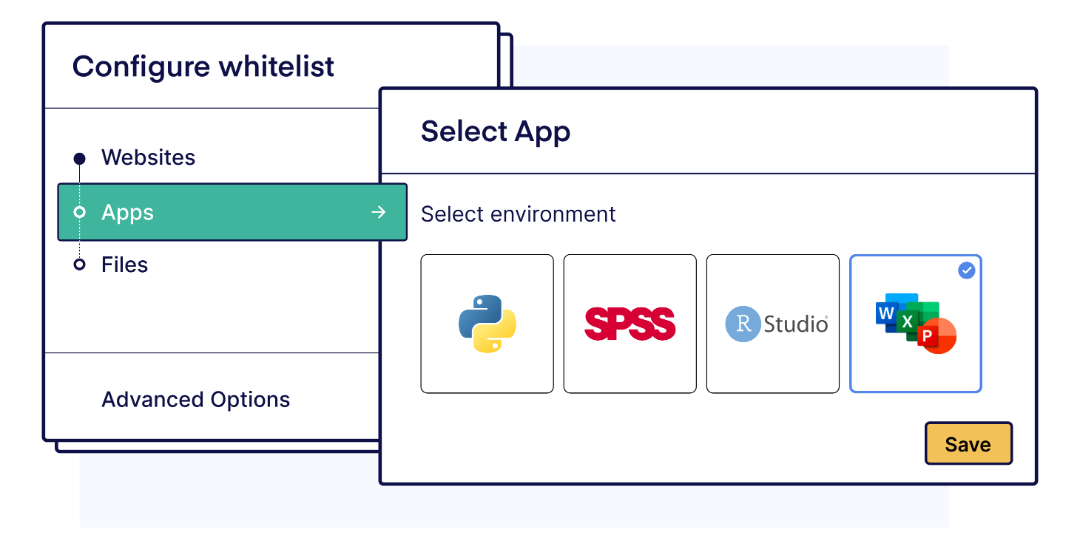
For application-based exams, the required software runs in a virtual environment instead of on the student’s device.
This means:
- Desktop applications run in a secure virtual environment.
- Students cannot access local files.
- Internet access can be restricted or disabled.
- Built-in AI assistants can be disabled.
- All students use the same software version.
- Performance differences between devices are eliminated.
This allows institutions to run secure BYOD exams while still assessing real software skills.
→ How ROC van Twente runs secure Word and Excel exams on student-owned devices
Conclusion
Local application whitelisting is fundamentally insecure on BYOD devices.
Once desktop applications run locally on a student’s own laptop, they continue to interact directly with the operating system, network, and file system. As a result, a traditional locked down browser can no longer fully control the exam environment.
Students can now use the applications to access the internet, open personal files, or use AI add-ins. At the same time, differences in hardware and software versions can lead to unequal exam conditions.
Application whitelisting can work on managed devices where institutions control the entire device environment. In BYOD environments, that level of control does not exist.
If institutions want to assess real software skills securely on student-owned devices, the applications should not run locally. Instead, they should run in a controlled virtual environment such as Schoolyear’s Safe Exam Workspace.