.avif)


Blackboard Learn does not have its own lockdown browser. It controls the assessment, not the device the assessment runs on.
That means a Blackboard test opens in a normal browser while the rest of the student's laptop remains available: other websites, AI tools, messaging apps, personal files, and any software installed on the machine.
A lockdown layer closes that gap. The test is opened in a controlled environment for the duration of the exam, in which students can only access the test and other permitted resources.
This article explains why that layer is needed, what to look for in a lockdown solution, and how it works with Blackboard in practice.
Why Blackboard exams need a lockdown layer
Blackboard is built to deliver and manage assessments. Its native controls cover:
- Access. Who can open the test, including access codes to release it in the room.
- Timing. Availability windows and time limits, with automatic submission.
- Test design. Question pools and randomization, so students do not necessarily receive identical questions.
- Logging. Timestamps for interactions during the assessment.
These controls make cheating more difficult, but they do not prevent students from accessing resources outside Blackboard.
This is because blackboard controls the test, not the device. An access log may show a two-minute gap in activity, but it cannot show what happened on the device during those two minutes.
A student could open ChatGPT or Claude in another tab, use an AI assistant that appears as an overlay on top of the exam window, start a remote desktop session, or run the exam inside a virtual machine. Tools designed to bypass exam security are also increasingly easy to find online.
An invigilator at the back of the room cannot monitor activity across every laptop at once. The software has to control what happens on the device.
What a good lockdown browser needs to do
The term "lockdown browser" is used for a category of products that work in different ways. These are the main criteria to look at when comparing them.
1. Control the device, not just the browser
This is the most important distinction.
Browser-level lockdown runs as a special browser. It can prevent actions such as switching tabs, copying, printing or leaving the exam window. Software running outside that browser is not controlled in the same way.
System-level lockdown runs as a native application on the operating system. It can control which applications are allowed to run and what the device can access while the exam is active.
Many popular cheating tools run outside of the browser. AI overlays, virtual machines and remote-access tools are separate desktop applications, which means browser-only controls cannot address them directly.
Ask a vendor: what exactly is blocked at system level, and how are virtual machines and remote desktop software handled?
2. Work by permission, not by blocklist
A blocklist only stops tools or resources that have already been added to it. New AI tools appear continuously, and recently released tools may not yet be included.
A permission model works the other way around. Only resources approved for the exam are accessible; everything else remains unavailable.
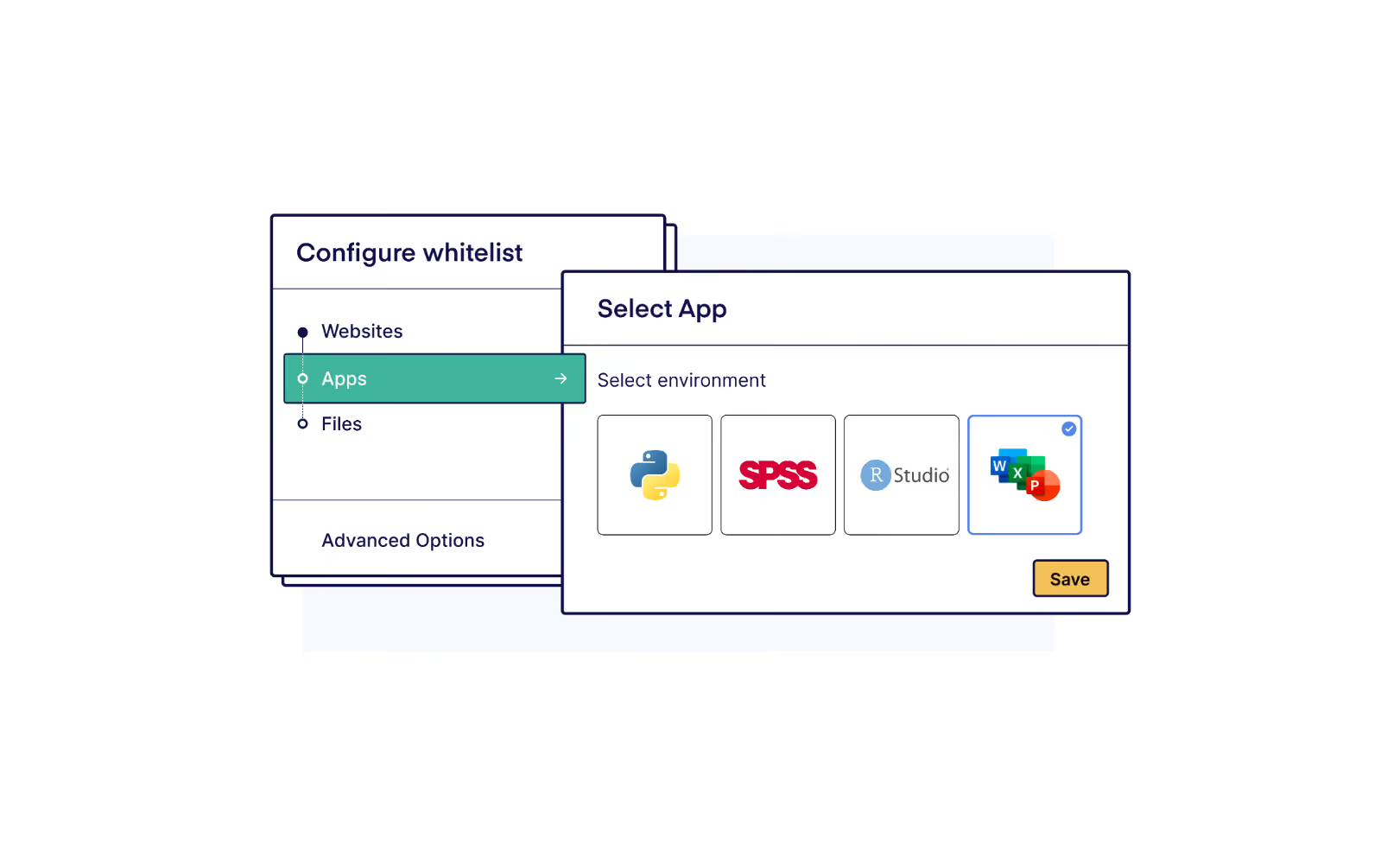
This also makes open-resource exams possible. You can allow a specific website, application or file without giving students access to the rest of the web.
3. Work on student-owned laptops
BYOD allows institutions to increase exam capacity without relying entirely on dedicated computer labs.
That means the security also has to work on unmanaged devices. It cannot depend on device management, configuration by IT, or assumptions about what students have installed.
A solution that only works reliably on managed lab devices limits where exams can be held and how easily capacity can be expanded.
Managed institutional devices should still be supported as well. Many institutions use a combination of both.
4. Be verifiable while the exam is running
Starting an exam in a secure state is not enough. The institution also needs visibility into whether that secure state is maintained during the exam.
If the lockdown fails or is somehow bypassed during the exam, the invigilator needs to be able to see that while students are still working. After the fact, it’s simply hard to prove.
Ask a vendor: can an invigilator verify device status in real time, and what appears when a device is no longer in the expected secure state?
5. Protect the device without filming the student
For a supervised exam, the student is already being observed by an invigilator in the room.
Adding webcam monitoring introduces additional considerations around privacy, recording, retention, lawful basis and proportionality.
Device lockdown avoids that. There is no webcam recording, screen capture, behavioral flagging or footage to review afterward. The software controls the device while the invigilator supervises the room.
Unsupervised remote exams have different requirements. When no invigilator is present, identity and behavior need to be addressed in other ways.
6. Let instructors secure a test from Blackboard
Instructors should be able to enable lockdown from the Blackboard test they have already created, using the settings they already work with.
If every exam requires a separate portal or an IT request, the process becomes difficult to manage at scale during exam periods.
7. Handle desktop applications when you need them
Most Blackboard exams are quizzes, so this only matters when an assessment requires applications such as Excel, SPSS, MATLAB or VS Code.
One approach is to allow the copy of the application already installed on the student's device. This can work on a managed lab computer. On a personal laptop, however, the permitted application may still have access to the student's own files, cloud storage or built-in AI functionality such as Copilot.
The alternative is to run the application in a workspace isolated from the student's own system, without access to personal files or unrestricted online resources.
How to set up lockdown for Blackboard with Schoolyear
Schoolyear is a device lockdown software solution. It secures the laptop at system level and runs the Blackboard assessment inside its Safe Exam Workspace on both managed and student-owned devices.
Blackboard remains the assessment platform. Instructors continue to build, schedule and grade tests as they do today.
Administrators activate the integration once. The Blackboard administrator and Schoolyear administrator add the Blackboard add-on from the Schoolyear admin console. If students sign in through SSO, the required login URLs are added to the global whitelist because they are blocked by default.
After activation, the option is available to instructors across courses. There is no separate installation per course.
Instructors secure a test in four steps:
- Open the test and set the end date and release conditions. These determine the exam timeslot communicated to Schoolyear.
- In the test settings, go to Assessment security and click Configure proctoring settings.
- Turn on proctoring and click Enable Schoolyear.
- Configure what students may access during the exam in the settings widget, then click Save.
Blackboard separates Tests and Assignments in the menu. Both use the same workflow.
→ Full setup instructions in the Schoolyear Help Center
What instructors, invigilators and students experience
For the instructor
The assessment stays in Blackboard. It is created, configured and graded there, and Schoolyear is enabled from the settings of the same test.
There is no need to rebuild the assessment in another system.
For the invigilator
During the exam, the Schoolyear dashboard can be opened directly from the Blackboard test through Assessment security → Configure proctoring settings → Dashboard.
The dashboard shows the security status of devices in the session. If a device fails or leaves its secured state, that becomes visible while the exam is still running rather than only afterward.
Because the dashboard opens from the assessment itself, the invigilator is taken directly to the relevant exam session.
For the student
The exam still starts in Blackboard.
- Sign in to Blackboard as usual and click Start attempt.
- The Schoolyear onboarding page opens. Click Launch Schoolyear, or Download now if it is not installed yet.
- Click Launch your Workspace in the Schoolyear application.
- The Safe Exam Workspace opens and runs the device checks automatically.
- Once the checks pass, the Blackboard exam becomes available inside the workspace.
- After submitting in Blackboard, exit using the Exit button.
Three things are worth including in your exam communication:
- Open programs are closed when the exam starts. Students should save other work first.
- Students need permission to install applications on the laptop they bring.
- A device check is available in advance. Running it beforehand allows students to identify problems before exam day.
→ The complete student flow for Blackboard exams
Choosing the right lockdown for your Blackboard exams
Blackboard provides the tools to build and deliver the assessment. The remaining question is how the device around that assessment is secured.
Three questions are particularly important:
- Does the solution control the operating system or only the browser? Relevant bypasses can operate outside the browser.
- Does it work on unmanaged student laptops? If not, it cannot support BYOD exams in the same way.
- Can the security state be verified during the exam? Configuring lockdown before an exam is different from knowing that it remains active during the attempt.
These questions provide a practical basis for comparing lockdown solutions for Blackboard.
→ Want to see how Schoolyear secures Blackboard exams on student devices? Book a demo.