.avif)


Laptops and tablets have become standard tools in the classroom, not exceptions. That brings real benefits: students can work with up-to-date materials, teachers can share resources instantly, and learning becomes more interactive. But it also comes with challenges. Give a student a connected device and the lesson has to compete with all the distractions the internet has to offer.
Classroom management software is the answer to that problem. It gives teachers real-time visibility and control over what students can access on their devices during class, without having to stand over every shoulder or ban devices altogether.
This guide covers what classroom management software is, which features matter most, and ten solutions worth knowing in 2026. It also addresses a question that comes up more often as schools digitize their exams: can classroom management software double as exam security software?
TL;DR
- Classroom management software gives teachers real-time control over student devices during lessons: monitoring screens, blocking distractions, and keeping everyone on task.
- Core features of classroom management tools include real-time screen monitoring, intelligent web filtering, screen freeze, file sharing, and roster sync.
- Several tools offer a basic quiz mode, but these fall short of what digital exams require.
- For exams, dedicated exam security software is required.
What is classroom management software?
Technology in the classroom is a double-edged sword. A student with a laptop has access to everything they need and everything they don't. Without any oversight, a lesson can quietly fall apart: one student on social media, another watching videos, a third doing homework for a different class. Classroom management software gives teachers the tools to prevent that, without having to stand over every shoulder or confiscate devices.
At its core, classroom management software is a dashboard that gives teachers real-time visibility and control over what students can do on their devices during a lesson. A teacher can see all student screens at a glance, push a website to every device at once, freeze all screens to get the class's attention, or quietly message a distracted student.
The goal is not to lock everything down. It’s to make digital learning work the way it should: students have access to the tools and resources they need for the lesson, and not much else. A good classroom management tool makes it easy for a teacher to open things up when students need to do research, tighten access during focused work, and close everything off during an explanation.
Beyond device control, these tools also reduce the administrative friction of running a lesson. Roster sync means the teacher's class list is already there when they log in. Usage reports show which students were on task and which weren't. File and link sharing means no time is wasted waiting for students to navigate to the right page. The result is more actual teaching time and less time managing technology.
Core features you'll find across most classroom management tools
- Real-time screen monitoring: view all student screens from a single teacher dashboard
- Screen freeze / focus mode: lock all student devices instantly to regain attention of the entire class
- Web filtering: often category-based blocking of websites (social media, shopping, gaming)
- Remote access: take control of a student's keyboard and mouse to assist or redirect
- File and link sharing: push a URL or document to all student devices simultaneously
- Class-wide announcements and private chat: communicate with the whole class or individual students
- Usage reports: view time on task, sites visited, and engagement metrics
- Polls and quizzes: built-in tools for low-stakes, formative assessments
- Roster syncing: connect to other tools your school already uses to automatically pull in your class lists, so you never have to enter student names manually.
Below, we’ll introduce you to 10 solutions and see how they compare across these core features.
The 10 best classroom management software solutions
1. Hāpara
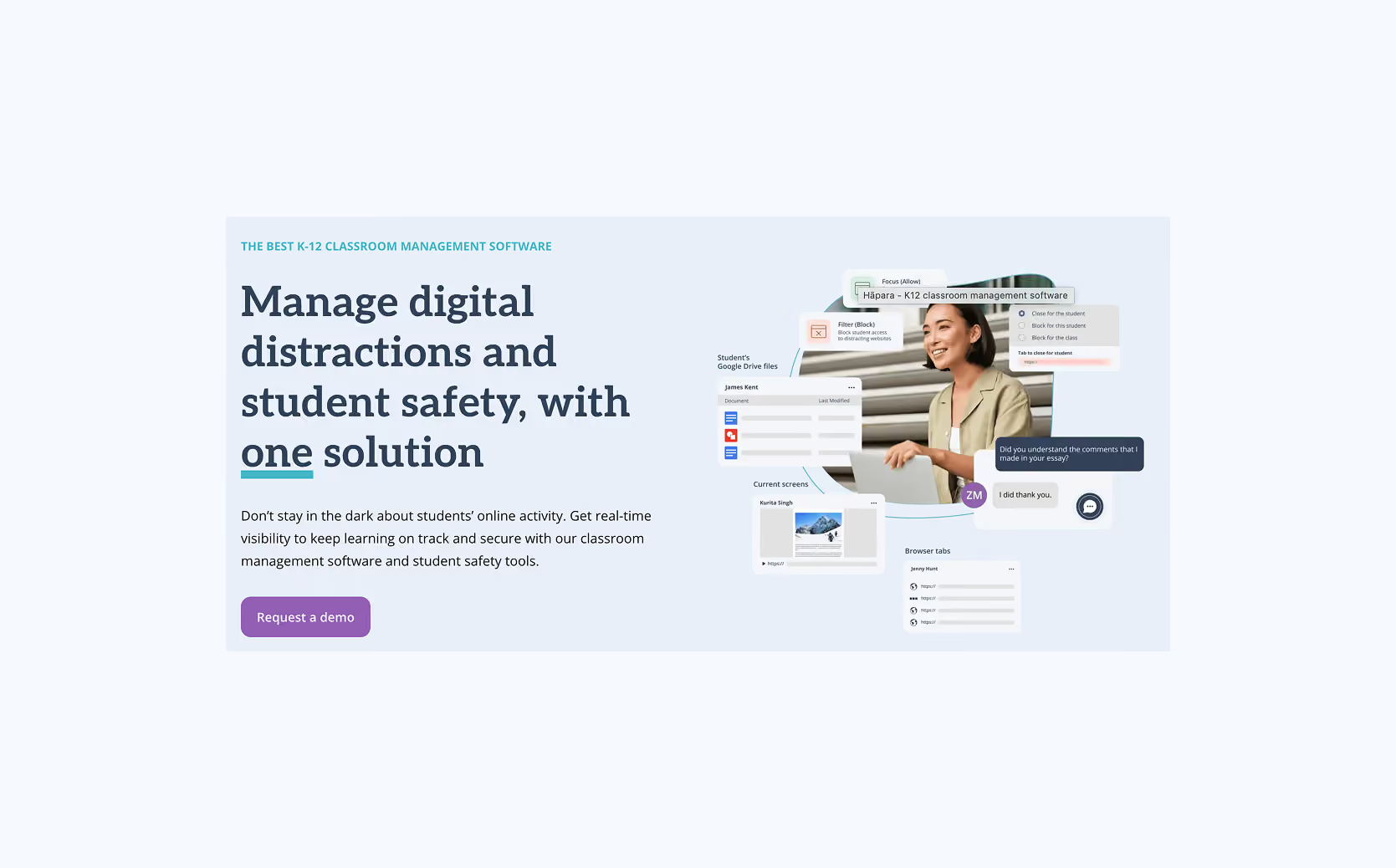
Where most classroom management tools monitor full device activity, Hāpara focuses exclusively on browser activity. This gives teachers visibility into student tabs, Google Drive files, and Chrome or Edge browsing in real time. Its standout feature is direct access to students' Google Drives from the teacher dashboard, allowing teachers to check progress on documents without students having to share anything manually.
- Real-time screen monitoring: live tab view of all student Chrome or Edge browsers
- Screen freeze / focus mode: two distinct modes: Freeze tabs locks students to their current open tabs; Pause screens replaces the browser with a teacher message for up to 15 minutes
- Web filtering: Focus Sessions (whitelist) and Filter Sessions (blocklist) for guided browsing; sessions can be scheduled in advance or applied in the moment
- Remote access: close individual tabs in the browser, no full device control
- File and link sharing: push links to individuals, groups, or the whole class; share Google Drive files directly from the teacher dashboard
- Announcements and private chat: class-wide announcement feature; one-to-one chat between teacher and student
- Usage reports: browsing history per student, Overview Panel shows class-wide activity at a glance
- Polls and quizzes: not available
- Roster syncing: Google Classroom
2. GoGuardian Teacher
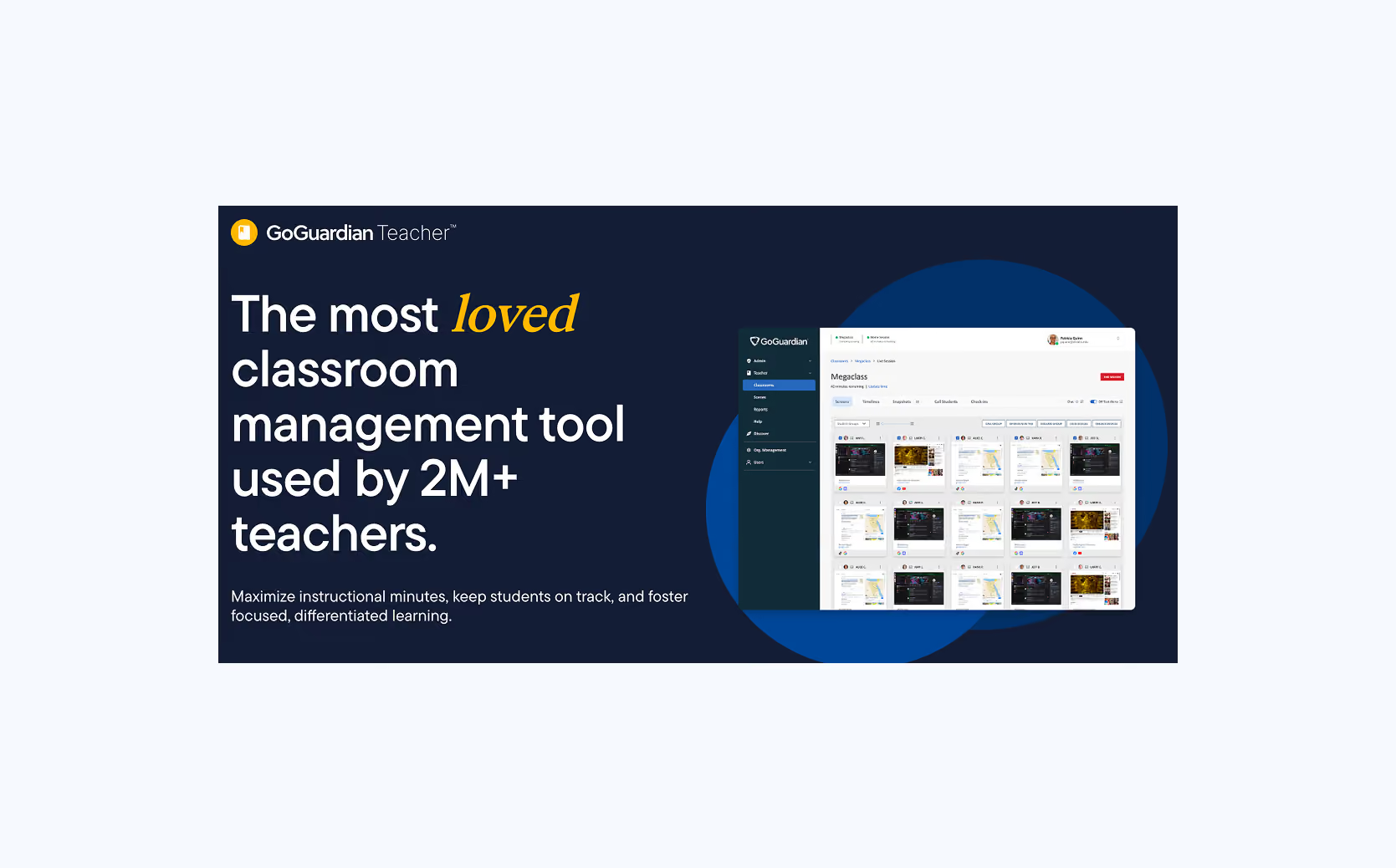
GoGuardian is the dominant classroom management platform in the United States, serving over 25 million students across more than 10,000 schools. It is built primarily for Chromebook and Google Workspace environments. Its standout feature is 'Scenes', pre-saved sets of rules that define which websites and apps students can access. A teacher can set one up for a research activity, another for a focused writing session, and switch between them in one click during the lesson.
- Real-time screen monitoring: GoGuardian claims a faster screen refresh rate than competing tools, meaning the teacher dashboard stays closer to what students are actually doing in real time.
- Screen freeze / focus mode: lock student screens and redirect to a specific tab or URL
- Web filtering: teacher-managed allow/block lists via Scenes
- Remote access: close tabs and push URLs from the teacher dashboard
- File and link sharing: open a specific tab on all student devices simultaneously
- Announcements and private chat: two-way private messaging between teacher and individual students
- Usage reports: browsing history, time on task, and engagement data per student
- Polls and quizzes: not available
- Roster syncing: Google Classroom, Clever, and ClassLink integrations
3. LanSchool (by Lenovo)
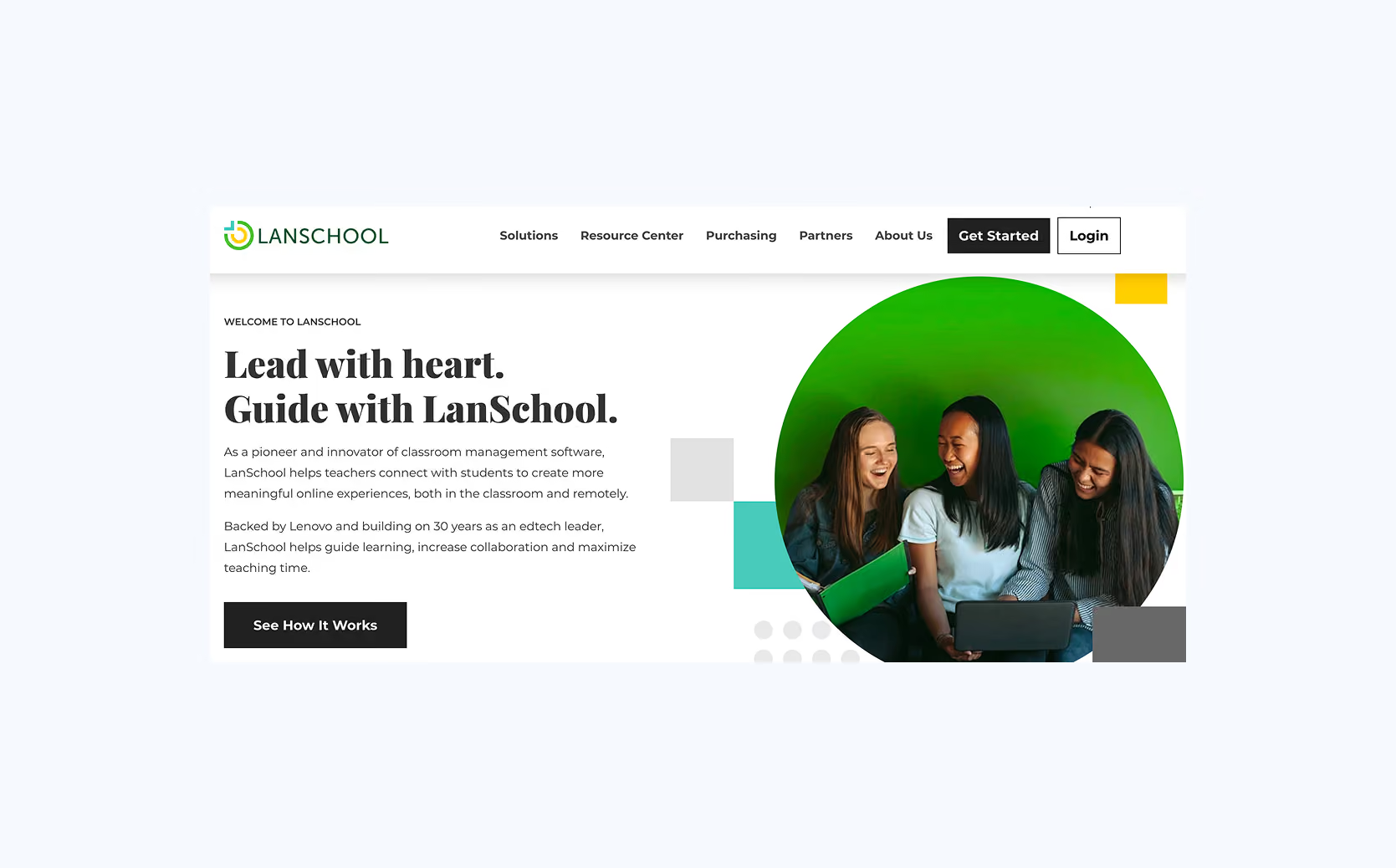
LanSchool is one of the longest-established classroom management tools, now part of Lenovo's education portfolio. It supports mixed-device classrooms across Windows, Mac, and ChromeOS, and offers both a locally hosted version (LanSchool Classic) and a cloud-based version (LanSchool Air).
- Real-time screen monitoring: grid view across Windows, Mac, and ChromeOS
- Screen freeze / focus mode: blank screen on individual or all devices
- Web filtering: URL-based allow/block controls
- Remote access: close specific tabs remotely
- File and link sharing: push URLs to all student devices
- Announcements and private chat: class-wide announcements and private student messaging
- Usage reports: basic activity monitoring and session reporting
- Polls and quizzes: available in LanSchool Classic; not available in LanSchool Air
- Roster syncing: Google Classroom, Clever, and ClassLink integrations
4. Classwize
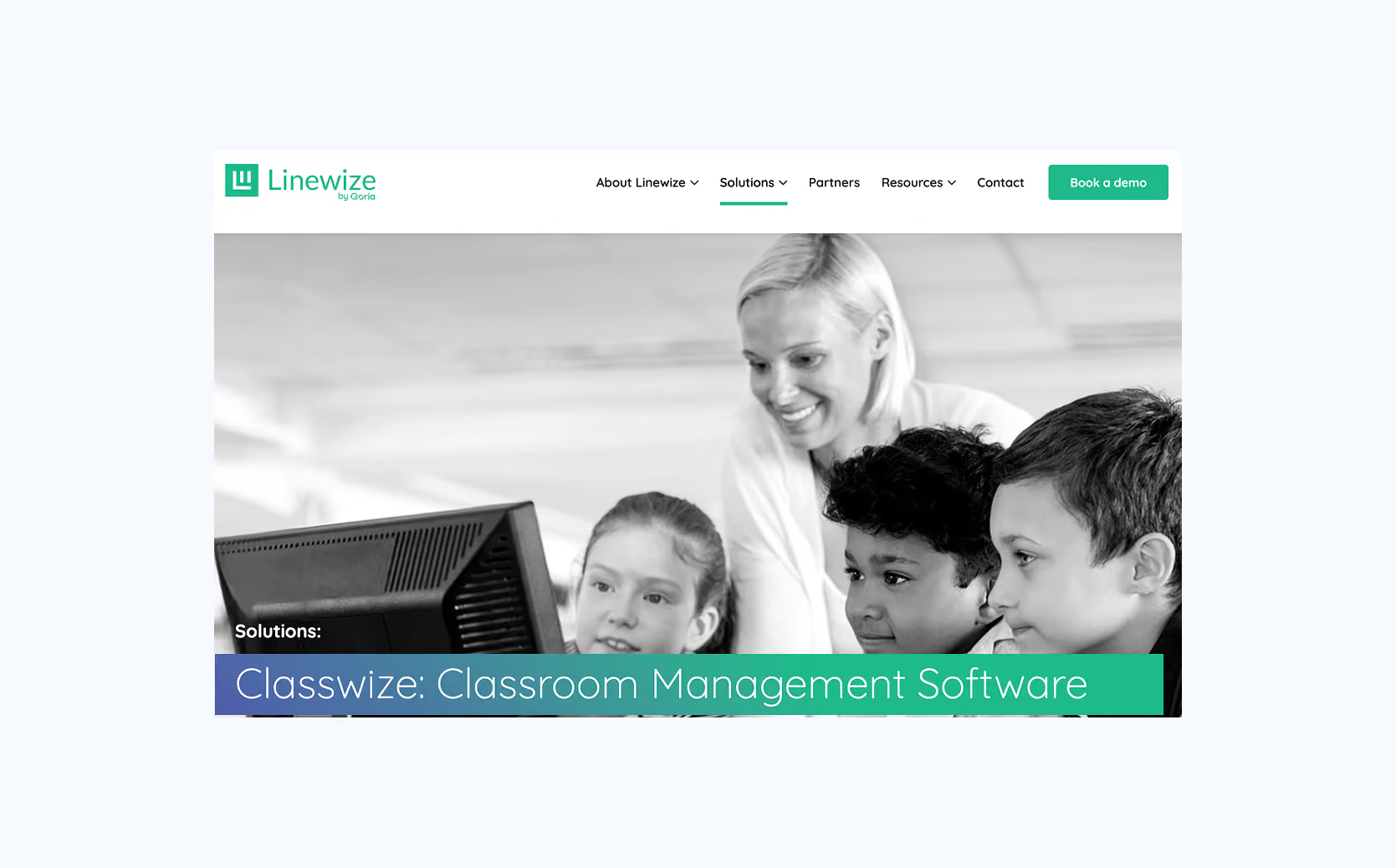
Classwize is the classroom management layer of the Linewize platform, a broader suite for schools. What sets Classwize apart from most classroom management tools is its focus on encouraging good behavior rather than just blocking bad behavior. Teachers can award students who stay on task, recognize positive online behavior in front of the class, and build a culture where responsible device use is something students take pride in.
- Real-time screen monitoring: visibility of all devices in the class
- Screen freeze / focus mode: Pause Internet shows a block page and stops all web access; does not blank screens or lock keyboard input
- Web filtering: teachers pre-select the specific websites students are allowed to visit during a session, everything else is blocked by default.
- Remote access: close tabs and redirect browsers from the teacher dashboard
- File and link sharing: share URLs and resources to all student devices
- Announcements and private chat: class-wide and individual communication tools
- Usage reports: time on task and website activity per student
- Polls and quizzes: not available
- Roster syncing: Google Classroom integration
5. Dyknow
Dyknow takes a teacher-centric approach: individual teachers control their own monitoring and blocking rules per class, without depending on IT to make changes. This makes it particularly popular in K-12 schools that want classroom-level flexibility. A teacher can allow YouTube for a video lesson, then block it for a writing assignment.
- Real-time screen monitoring: student desktops appear as live tiles in a grid view, click any tile to zoom in on a single student
- Screen freeze / focus mode: lock student screens instantly from the teacher dashboard
- Web filtering: per-session blocking rules set by the teacher
- Remote access: close tabs and push URLs to redirect student browsers
- File and link sharing: distribute resources to all students at once
- Announcements and private chat: private instant messaging between teacher and student
- Usage reports: time on task, sites visited, and activity summaries per student
- Polls and quizzes: interactive polls and quizzes built in
- Roster syncing: Clever (a roster management service that automatically syncs class lists from your school's administration system) integration for automatic class roster import
6. Lightspeed Classroom Management
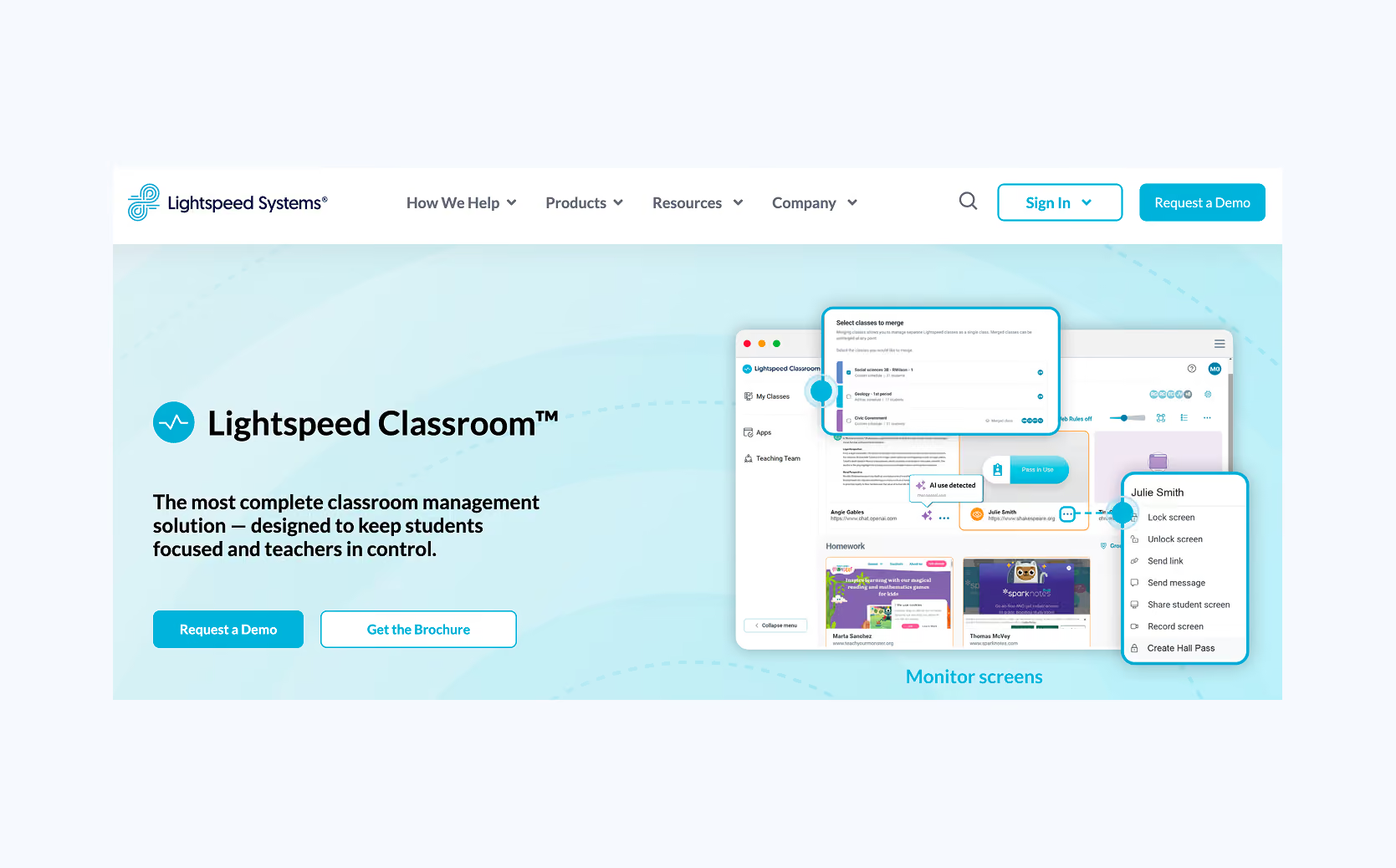
Lightspeed offers a full suite of school technology products. Their Classroom Management product enables teachers to manage their own classroom. The suite also includes Lightspeed Alert, an AI-powered student safety monitoring product, and Digital Insight for device and application usage analytics.
- Real-time screen monitoring: live view of all student devices, in-person and remote
- Screen freeze / focus mode: lock screens and redirect student attention from the dashboard
- Web filtering: per-session URL allow/block rules set by the teacher
- Remote access: close tabs and manage student browsers remotely
- File and link sharing: distribute lesson materials to all devices at once
- Announcements and private chat: class-wide and individual communication tools
- Usage reports: shows application analytics and engagement data
- Polls and quizzes: not available
- Roster syncing: Google Classroom and major SIS integrations
7. Classroom.cloud
Classroom.cloud is NetSupport's cloud-based classroom management product. It is fully browser-based with no local installation needed on the teacher's device and supports all five major operating systems.
- Real-time screen monitoring: live thumbnail view across Windows, macOS, iOS, Android, and ChromeOS
- Screen freeze / focus mode: blank student screens and lock keyboards with one click
- Web filtering: tab management, allow/block lists, and website restriction tools
- Remote access: take full remote control of student devices from the browser
- File and link sharing: push URLs and course materials to all student devices simultaneously
- Announcements and private chat: class-wide announcements and private student messaging
- Usage reports: session activity and engagement reporting
- Polls and quizzes: built-in survey and quiz tools for in-class formative assessment
- Roster syncing: MIS, Google Classroom, and Microsoft Azure AD integrations
8. Apple Classroom
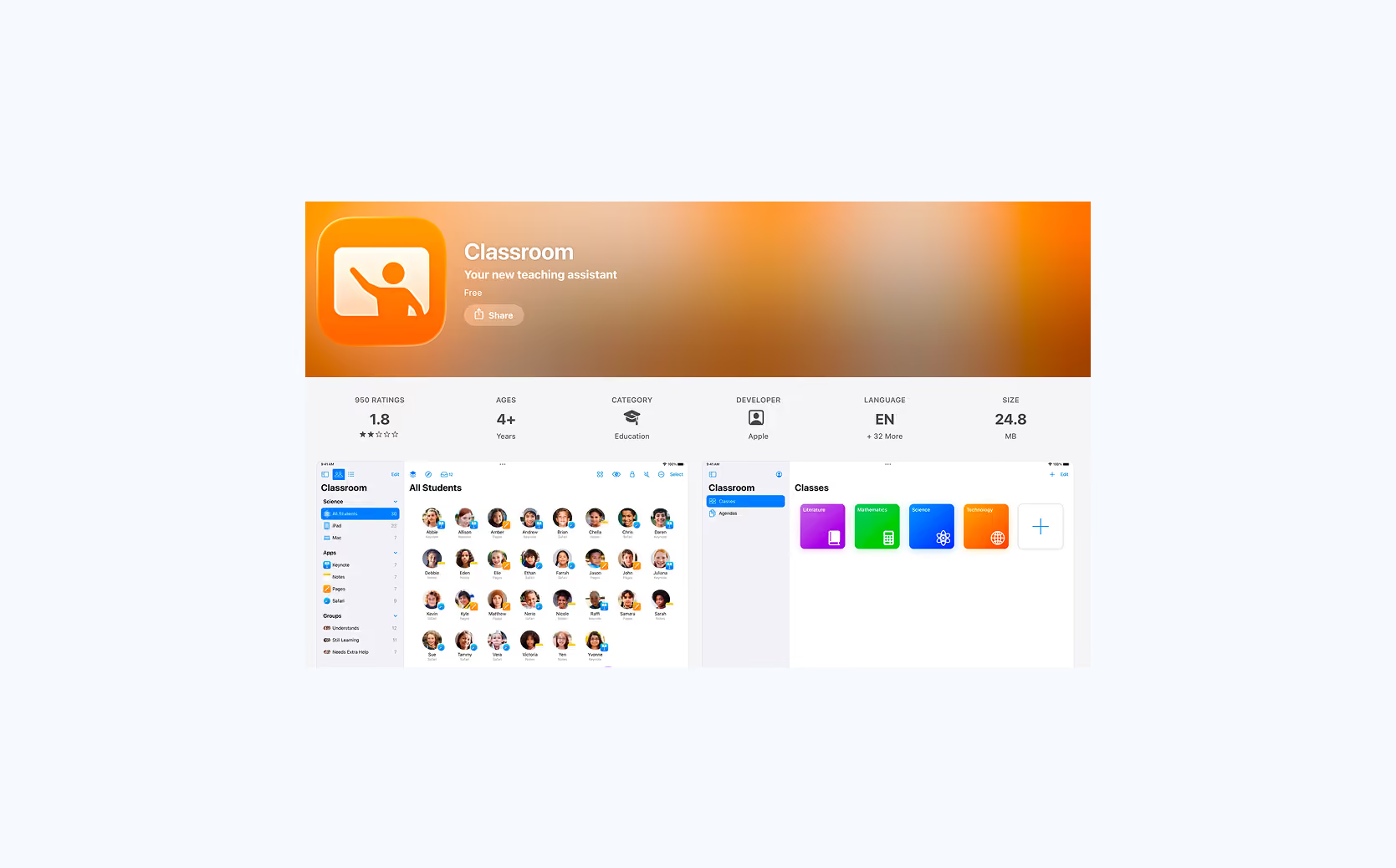
Apple Classroom is Apple's native classroom management tool, available free through Apple School Manager. It is the natural choice for schools that use iPads and Macs. There is no third-party installation required and roster sync is automatic via Apple School Manager. Its feature set is narrower than standalone classroom management tools: it covers screen viewing, device control, and content sharing well, but lacks native web filtering, usage reporting, and built-in assessment tools.
- Real-time screen monitoring: teachers can view any student's screen
- Screen freeze / focus mode: lock all student devices to a specific app or website instantly
- Web filtering: not available natively; requires Apple Screen Time or a third-party mobile device management tool
- Remote access: limited; can lock/unlock apps but not full device control
- File and link sharing: push apps, documents, and URLs to all student devices via AirDrop or shared links
- Announcements and private chat: teachers can have 1-1 chats with students, no class-wide announcements
- Usage reports: reporting shows which apps each student used during a session and for how long
- Polls and quizzes: not built in
- Roster syncing: automatic via Apple School Manager
9. Muute
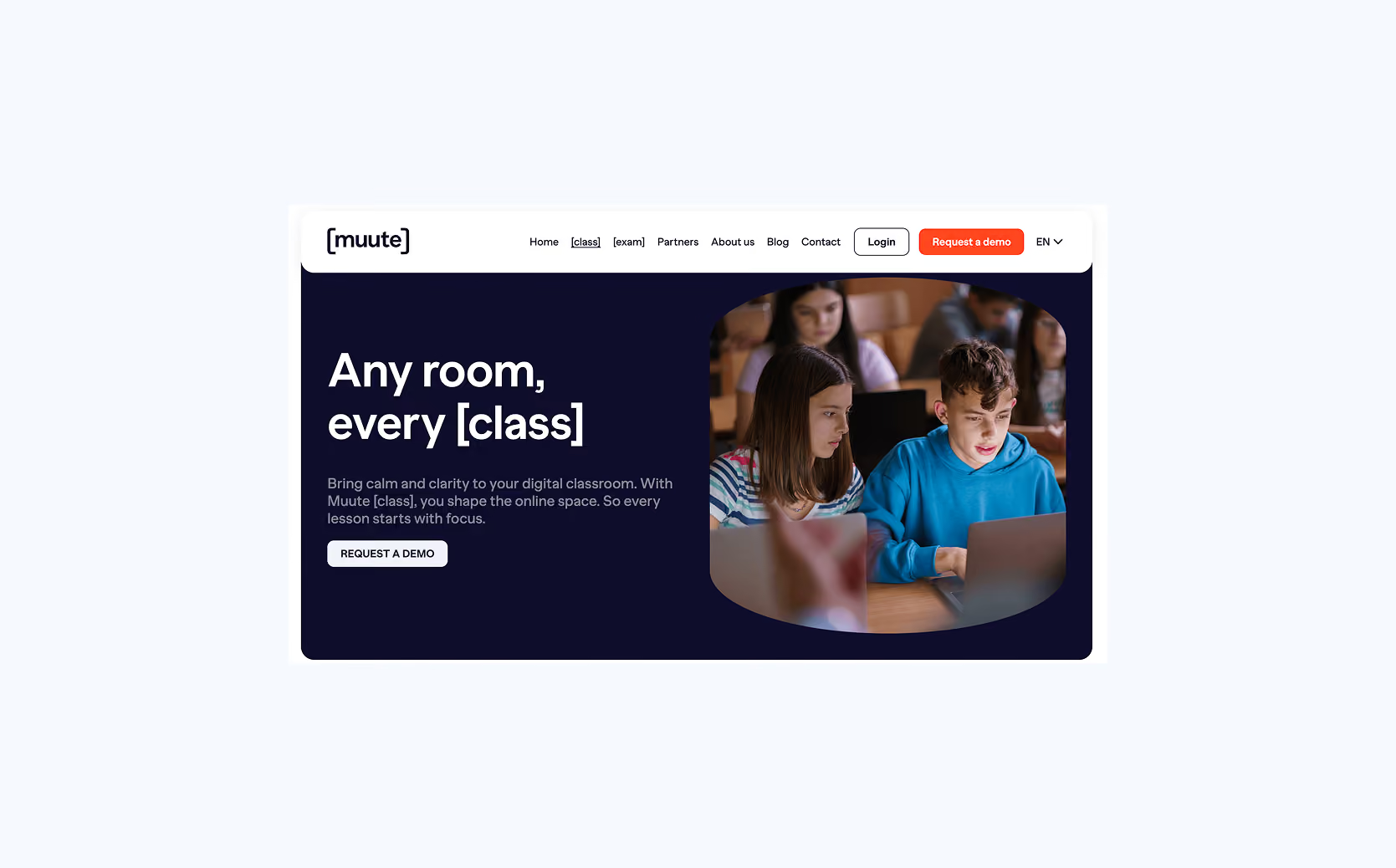
Muute is a Dutch classroom management software solution. Their Class product gives teachers simple, single-click control over which apps and websites students can access, with the ability to freeze all screens at any moment. If that is what you need - a lightweight tool to keep students focused without complexity - it is a solid choice. However, similarly to Apple Classroom, it’s not a full-featured classroom management platform. Muute also offers a separate product for basic digital testing scenarios.
- Real-time screen monitoring: not available
- Screen freeze / focus mode: yes; one-click freeze to get student attention
- Web filtering: yes; app and website access control via configuration presets
- Remote access: not available
- File and link sharing: unknown
- Announcements and private chat: unknown
- Usage reports: unknown
- Polls and quizzes: unknown
- Roster syncing: unknown
10. Senso
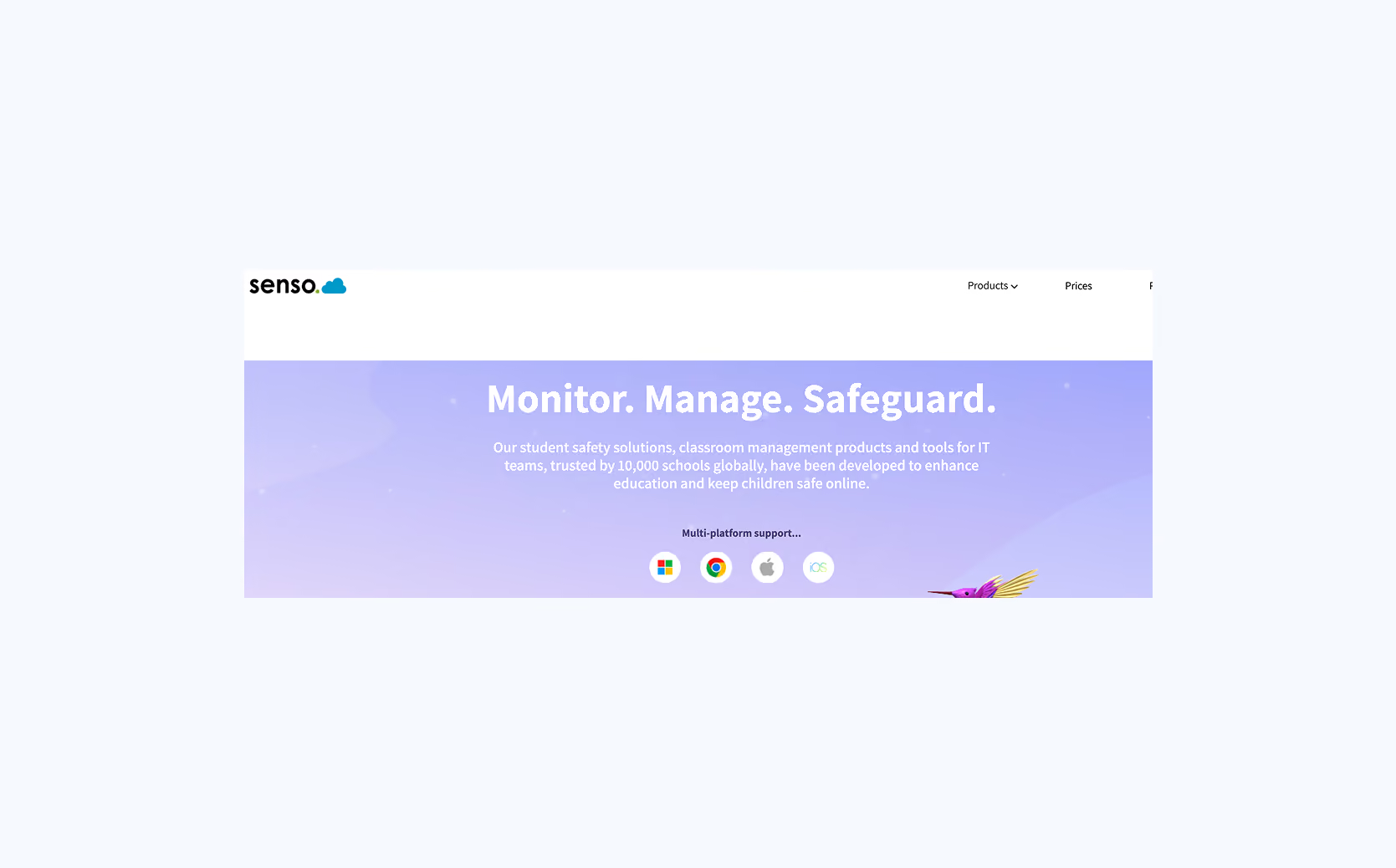
Senso is a classroom management and student safety platform. It covers all core classroom management features and adds IT device management and safeguarding tools - keyword monitoring, content alerts, and hardware/software inventory - in the same platform. A recent addition, Senso Blur, automatically detects and blurs inappropriate images in Chrome and Edge browsers in real time.
- Real-time screen monitoring: live thumbnail view of all student devices
- Screen freeze / focus mode: lock screens and keyboards to redirect student attention
- Web filtering: website and application blocking via configurable policies
- Remote access: take full control of student devices to assist or redirect
- File and link sharing: send files and launch websites on student devices in one click
- Announcements and private chat: class-wide messages, private chat, and quick pop-up questions
- Usage reports: hardware, software, and user activity reporting
- Polls and quizzes: ability to request instant whole-class feedback
- Roster syncing: Google Classroom, ClassLink, and Clever integrations
Can you use classroom management software for exams?
This is a logical question. Your institution already has classroom management software in place, and several tools on this list even include the ability to conduct quizzes. Why not use what you already have?
The answer is simple: anything from a Kahoot quiz to an exam in an assessment platform can't provide reliable security against cheating.
Bypassing classroom tools has become easy
Cheating on digital exams is no longer a matter of a student improvising a workaround. It has become an industry. Bypass tools are widely available online and are often designed to be plug-and-play. A student downloads one before the exam, runs it during, and the classroom tool never registers a thing.
This is because classroom management tools are not built for exam security. They are designed for teaching environments, where visibility and basic control are enough to guide a lesson. They do not enforce system-level restrictions or isolate the exam environment from the rest of the device.
As a result, techniques like virtual machines, external devices, or network-based workarounds fall completely outside their scope. For a classroom lesson, that limitation is acceptable. For an exam, it’s not.
Classroom tools are built for flexibility, not lockdown
During a lesson, a teacher might say: open this document, go to this website, now switch back. That flexibility is key. But in an exam, that same flexibility becomes a liability.
Classroom tools often use category-based filtering (sometimes AI-assisted) to decide what students can and cannot access. That works well for lessons, where the goal is to keep students roughly on track. But it means the filtering is never fully deterministic. Two students on the same tool, in the same session, may encounter different results depending on how a URL is categorized in real time.
For an exam, that's a problem. You need a watertight environment where everything outside an explicit whitelist is inaccessible, not a best-effort filter that blocks most of what it should. A student shouldn't be able to access any personal files or stumble onto a helpful website because an automated system miscategorized it. Lockdown browsers solve this by enforcing whitelisting strictly, so every student has the exact same experience and the outcome doesn't depend on a filter making the right call.
Exam platforms have no way to verify that classroom tools are actually running
With a dedicated exam security solution, the connection between the student's device and the exam platform is enforced automatically. Before a student can access the exam, the platform verifies that the required security software is active and that the device meets the security requirements. If it doesn’t, the student cannot start.
Classroom management tools have no similar mechanism. There is no integration between the classroom tool and the exam platform. This means the exam platform has no way of knowing whether a student has the classroom tool running at all. The teacher has to monitor this manually, checking at the start of the session whether every student has activated the software. In a room of thirty (let alone many more) students, that is not a reliable control.
There is a second consequence of this missing integration. Because the exam platform has no connection to the classroom tool, it also cannot verify where an exam session is actually coming from. Nothing stops a student outside the exam room to log into the exam on an unsecured device.
Desktop applications and coding environments on student-owned devices are a particular challenge
Institutions increasingly want to make their exams more authentic by allowing students to work with real-world applications like Word, Excel, R, Python, SPSS, and MATLAB. But running these applications on student-owned devices creates two problems that classroom management software cannot solve.
First, it cannot allow desktop applications while simultaneously blocking the tools built into it. A student running Excel can still reach the internet through installed add-ins, or use AI through Copilot inside Word.
Second, it cannot guarantee equal exam experience: one student has a brand-new laptop with the fastest chip and most up-to-date software versions; another has an older machine with a different configuration. Classroom tools have no mechanism to equalize that. The result is an exam environment that is neither secure nor fair.
Logging has to hold up in an academic misconduct hearing
When a suspected case of fraud goes before an exam committee, the burden of proof falls on the institution. Classroom management tools generate lightweight usage reports such as time on task and sites visited. That is useful for a teacher reflecting on a lesson. It is not sufficient for a formal misconduct hearing. What committees need is a detailed, structured log of what was accessible, what was blocked, and whether any bypass attempts were detected. Without that, an institution cannot build a defensible case.
What to use for digital exams instead
For digital exams, you need a dedicated exam security solution. These tools are built around a different set of priorities: deterministic security, deep assessment platform integration, equal treatment for every student, and full audit logging for exam committees.
Schoolyear is one such solution. It secures devices at the system level, which means students cannot use AI tools, access personal files, or run bypass software even if they try. Before a student can open the exam, Schoolyear automatically verifies that their device meets the security requirements and reports this to the exam platform. No teacher has to manually check if everybody has their lockdown activated.

For institutions that deliver exams that also require students to work with real desktop applications like Word, Excel, R, or SPSS or full programming environments, Schoolyear delivers an isolated desktop environment. In this environment, every student gets identical software access and performance regardless of what device they brought. There is no variation in configuration, no AI add-ins hiding inside applications, no access to personal files, and no advantage for students with newer hardware.
Schoolyear integrates with Canvas, Moodle, Ans, Brightspace, and other major assessment platforms and it doesn’t use webcam recording or behavioral surveillance. The security model is built on prevention, not monitoring.
→ Want to see how Schoolyear secures digital exams? Schedule a demo.