
.avif)


Kahoot! is often used for low-stakes, formative quizzes. But that doesn’t mean cheating is harmless.
The purpose of a formative quiz is to find out what students understand, identify misconceptions, and give them an opportunity to practice. If students use cheat tools, Google or AI to answer the questions, the results no longer tell you what they have actually learned.
Even when no grades are involved, competition, leaderboards and small prizes can be enough to incentivize cheating.
In this article, we explain:
- How students cheat during Kahoot! quizzes
- Which Kahoot! settings can make cheating more difficult
- Why classroom management software does not prevent Kahoot! cheating
- Why Kahoot! cannot block every cheating method itself
- How to secure a Kahoot! quiz with Schoolyear
How do students cheat in Kahoot! quizzes?
One quick Google search for “Kahoot cheating” brings up websites, scripts, browser extensions, and videos that help students cheat. Some methods specifically target Kahoot!. Others use general-purpose tools such as Google Lens, ChatGPT or an AI overlay.
The methods available also depend on how the Kahoot! is delivered.
In assigned Kahoots, the questions and answers appear on the student’s device. The same is true for live games when the host enables “Show questions & answers on participants’ devices”. This makes the quiz easier to follow, but it also gives digital tools direct access to the question content.
In a classic live game where questions appear only on the classroom screen, an AI tool can't read what’s on the student’s screen. However, students can still search manually or use Kahoot!-specific tools.
These are the main routes educators should know about.
1. Using Kahoot! bots and auto-answer tools
Some cheating tools are built specifically for Kahoot!.
Basic bots are used to flood the game with fake participants or inappropriate usernames. This is usually intended to disrupt the lesson rather than answer questions correctly.
Other tools retrieve the correct answers and submit them automatically. They may use information about the game session or try to identify the quiz being played. Because these tools are available through websites, extensions, and downloadable scripts, students do not necessarily need any technical knowledge to use them.
2. Finding a public Kahoot! before the quiz
Educators often reuse existing Kahoots or keep their own quizzes publicly available.
A public Kahoot! appears in search results on Kahoot!’s Discover page. If students know the quiz title or the educator’s username, they may be able to find and practice the exact questions beforehand.
This is different from using AI during the quiz, but it can produce the same result: a perfect score that does not reflect what the student has learned.
Private, organizational, or unlisted visibility can reduce this risk.
3. Opening another tab and searching for the answer
The simplest and most obvious method is switching to another browser tab, search for part of the question on Google or paste it into ChatGPT. For short factual questions, the answer may appear within seconds.
A strict time limit makes this less convenient, but it does not prevent it. Fast AI search tools have also made it possible to retrieve answers much more quickly than through a traditional search. Even Google now shows quick AI answers at the top of its search results.
4. Using an AI browser extension or Google Lens
AI extensions operate inside the browser the student is already using.
Some extensions can read text from the current page. Others let the student highlight a question, take a screenshot,or select part of the screen. The tool then sends that content to an AI model and returns a suggested answer.
Tools such as Google Lens make this particularly easy, as it is built natively into Google Chrome:
- Before the quiz, create a shortcut for ‘Search this tab with Google Lens’
- During the quiz, simply select the screen
- The right answer shows up in a sidebar in a matter of seconds
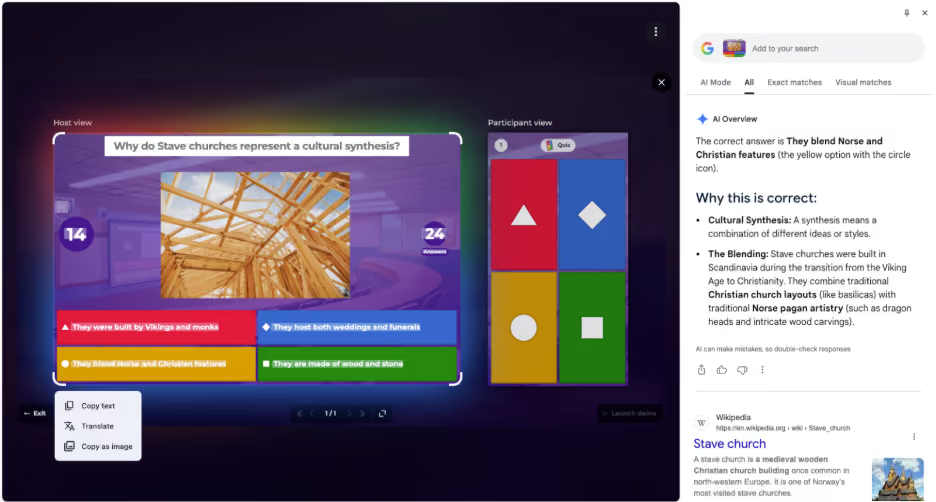
Fully AI-powered browsers are also growing in popularity, where AI is always ready to be prompted in a sidebar, regardless of which tab is open.
5. Running an AI overlay
AI overlays take AI cheating one step further.
Tools such as Cluely run as separate desktop applications. They analyze what is visible on the student’s screen and display an answer in a floating overlay. The Kahoot! page remains open and active throughout the process.
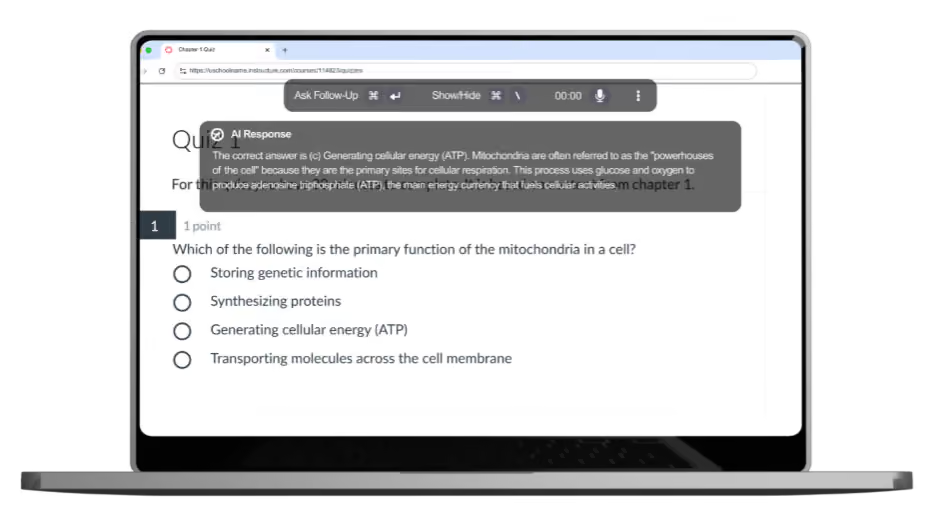
This makes the cheating method difficult to spot, even when you’re using a classroom management tool to monitor your students’ screens. The overlay is transparent and almost impossible to spot with the naked eye in a collection of tiles.
Which Kahoot! settings can reduce cheating?
Kahoot! includes several settings that can make bots, unwanted participants, and basic answer sharing more difficult.
Use 2-Step Join
With 2-Step Join, students must enter the game PIN and then match a changing pattern displayed on the host’s screen. This makes it harder for people outside the classroom and automated bots to join using only the game PIN.
Lock the game after everyone has joined
Once the expected students are in the game, educators can use Lock game joining. No additional participants can enter after the game has been locked, even if they have the PIN.
This is particularly useful against bots that attempt to join or flood a session after it has started.
Keep the Kahoot! private
Avoid publishing the Kahoot! publicly. Depending on your Kahoot! plan and setup, you can use private, unlisted or organization-only visibility. Remember that anyone with the link can still access an unlisted Kahoot!.
Randomize the questions and answers
For live games, educators can randomize both the questions and the answer order. In assigned Kahoots, the answer order can be randomized, but the question order currently can't.
Randomization makes it harder for students to copy a classmate.
Use appropriate time limits and supervision
Shorter time limits leave less room for manual searching. However, you want to avoid putting too much time pressure on students, especially on those who aren’t trying to cheat.
Overall, these settings are useful, especially against Kahoot!-specific bots and basic forms of cheating. However, they don’t prevent students who are willing to put in a little bit of extra effort to cheat.
Why classroom management tools can’t reliably prevent Kahoot! cheating
Classroom management tools such as GoGuardian, LanSchool and Lightspeed may seem like the obvious solution to prevent cheating during a Kahoot! quiz. They let teachers view student screens, close tabs, and block access to specific websites.
This helps against straightforward cheating. If a student opens Google or ChatGPT in another tab, the teacher may see it or the software may block the website. Schools can also block known Kahoot! cheat sites.
However, classroom management software is designed to keep students focused during lessons, not to create a secure assessment environment.
Blocking a list of known websites only works if your students don’t know an alternative outside of the blacklist. More importantly, classroom management tools do not reliably prevent unauthorized AI extensions or software from running elsewhere on the device.
An AI extension or overlay can analyze the Kahoot! question while the student remains on the permitted page. There is no new website for the classroom management tool to block and no obvious tab switch for the teacher to notice. Some overlays may not even appear in the screen view shown to the teacher.
In a Reddit discussion about students cheating in Kahoot!, teachers suggested using GoGuardian to monitor the quiz. Others pointed out that the software could not catch browser add-ons. One teacher specifically reported that a Google Lens overlay did not appear in the monitoring view.
How Schoolyear prevents cheating during Kahoot! quizzes
Schoolyear’s Safe Exam Workspace enables educators to reliably prevent cheating during any form of digital assessment, from formative quizzes to high-stakes final exams.
Kahoot!’s own settings help control who can join the game and make basic answer sharing more difficult. Schoolyear’s Safe Exam Workspace controls what can happen on the student’s device while the quiz is open.
Kahoot! opens inside the Safe Exam Workspace instead of the student’s personal browser environment. This removes the main digital cheating routes:
- Students cannot open Google, ChatGPT or other websites unless the educator has explicitly allowed them
- Personal browser extensions are not available inside the workspace
- Students cannot switch to an AI-enabled browser
- Unauthorized desktop applications and AI overlays can’t run
- Screen-sharing and remote access tools are blocked
- Risky shortcuts and attempts to bypass the workspace are restricted
- The secure state is verified throughout the quiz
The approach is preventive. Educators don’t have to watch recordings or interpret AI-detection scores after the quiz. The unauthorized tools simply can’t be used on the secured device.
What does setting up a secured Kahoot! look like?
Once Schoolyear is available at your institution, an educator can prepare the quiz without asking IT to configure every session.
The process is straightforward:
- Create a new assessment in the Schoolyear dashboard.
- Select a preconfigured Kahoot! setup or add the Kahoot! URLs students need.
- Choose whether any additional websites or resources should be available.
- Share the Schoolyear exam link and code with the students.
- Start the Kahoot! as usual and provide the game PIN.
When the quiz ends, students exit the workspace and their device returns to normal.
Schoolyear secures the device on which the student takes the quiz. As with any device security solution, educators still need to supervise the room and prevent the use of additional phones or tablets.
Do you need to secure every Kahoot!?
Not every classroom game requires full device security.
For an informal warm-up or a quiz played purely for engagement, Kahoot!’s own security settings and classroom supervision may be enough.
Security becomes more important when you use the results to:
- Determine whether students have mastered a topic
- Identify who needs additional support
- Award grades or course credit
- Make placement or progression decisions
- Demonstrate that students can answer without help from AI
Kahoot! can still provide the familiar quiz experience. Schoolyear’s Safe Exam Workspace adds the controlled environment around it.