.avif)


Many educational institutions use Moodle for digital exams. But how do you secure Moodle quizzes against cheating without making the setup hard to scale or overly complex?
Moodle itself includes a first layer of defense with built-in quiz controls such as time limits, passwords, IP restrictions, and question randomization. All useful features, but they are not enough to secure high-stakes exams.
The reason is simple. Moodle can control what happens inside the Moodle environment, but it has no control over the student’s device. This means Moodle does not natively provide:
- Device-level lockdown
- Webcam monitoring
- Screen recording
That's why institutions typically integrate a third-party exam security solution on top of Moodle.
Broadly speaking, these solutions fall into two categories:
- Lockdown tools (prevention): block the ability to cheat, often used for in-person exams
- Proctoring tools (monitoring): record and review behavior during or after the exam, often used for remote exams
Below, we compare five widely used options and explain where each one fits best. But before we do that, let’s first get a better understanding of what Moodle’s first line of defense can detect.
To what degree can Moodle detect cheating?
This is one of the most common questions institutions ask when evaluating Moodle for exams. Let’s break it down.
What Moodle can detect
Moodle logs a range of activity during quizzes, including:
- Quiz attempts and answers
- Timestamps for each interaction
- IP addresses and session data
These logs can be used to identify patterns such as:
- Very fast or very slow completion times
- Multiple attempts to answer a question
- Logins from unexpected locations
However, this is after-the-fact analysis, not real-time prevention. Moodle gives you data, but it does not actively stop cheating from happening.
What Moodle can't detect or prevent
Moodle can't see what happens outside of its own environment.
That means it cannot detect or prevent:
- Switching to other tabs or applications
- Taking screenshots
- Using AI tools like ChatGPT or Claude
- Screen sharing or remote desktop tools
- Activity on a second device (such as a phone)
It also does not provide:
- Screen recording
- Webcam monitoring
Moodle can see what happens inside Moodle, but not what happens on the device.
That’s why institutions simply can't rely on Moodle’s own first line of defense. An extra exam security layer is required.
The best preventive exam security tools for Moodle quizzes
1. Schoolyear – Safe Exam Workspace for Moodle
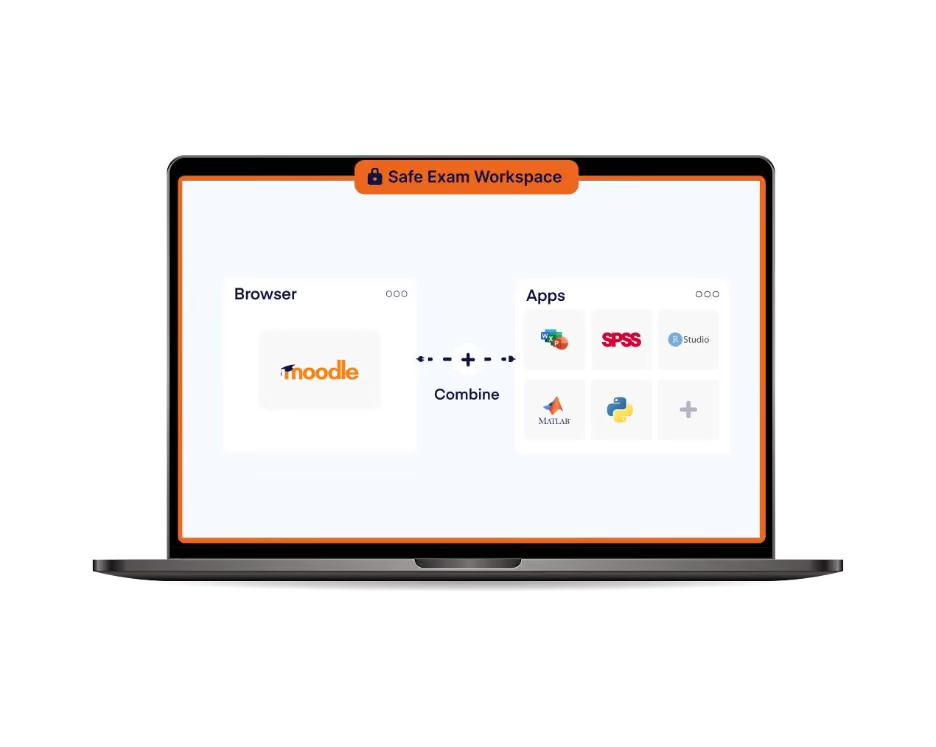
Helping students cheat on digital exams has become an industry of its own. Bypass tools are openly sold and shared online, and most traditional lockdown and proctoring solutions were never built to withstand this level of pressure. For the institutions that rely on them, it's a vulnerability that grows with every exam cycle.
Schoolyear was built to secure exams in this reality:
- System-level security: Many lockdown and proctoring tools only lock down the browser, enabling students to easily bypass the security with an AI overlay or virtual machine that runs outside the student’s browser. Schoolyear prevents this by locking down the device at system level, closing these loopholes at the root.
- Verification dashboard: With traditional exam security tools, a bypassed lockdown goes undetected. Schoolyear's real-time verification dashboard gives invigilators visibility into every device's lockdown status, right inside of Moodle.
- Dedicated security team: New bypasses emerge constantly. Schoolyear has a dedicated security team that tracks them down and rolls out fixes to every device.
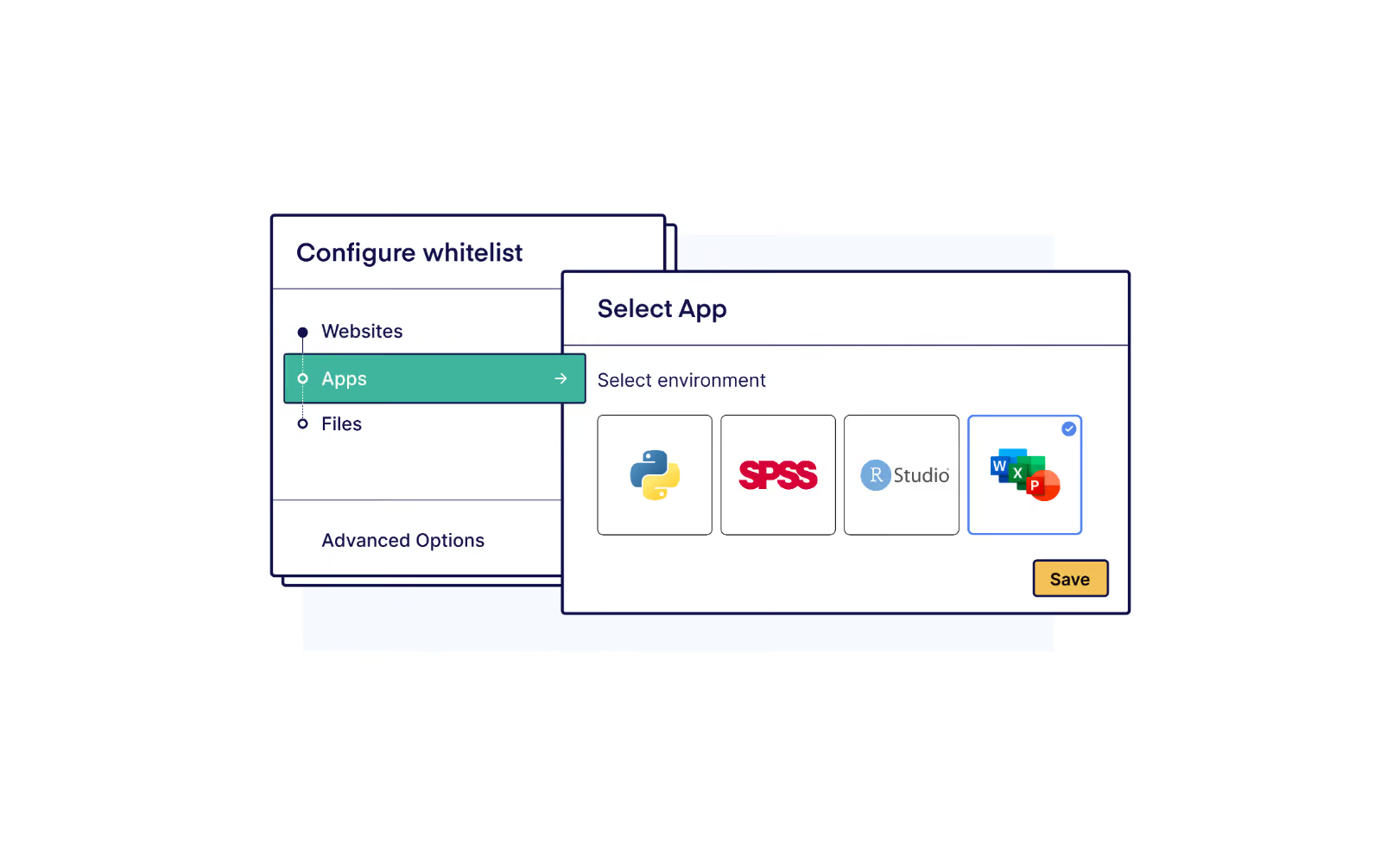
Students start their exam in Moodle Quiz, but before accessing the questions, their device enters a secure exam mode. This mode ensures that only Moodle and approved resources (webpages and files) are accessible during the exam. Everything else is automatically blocked. Teachers can easily set up exams and turn on Schoolyear’s security right inside of Moodle.
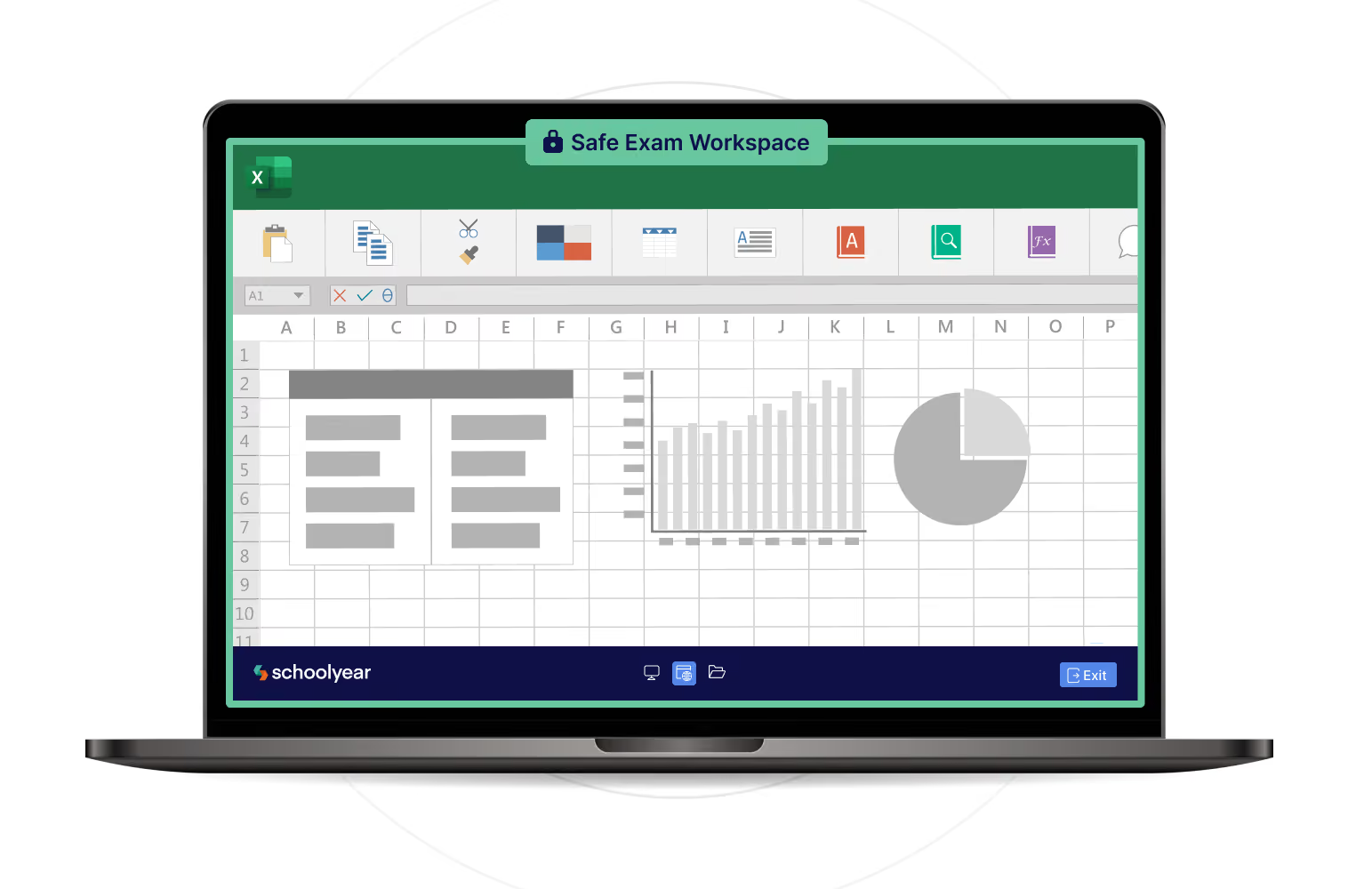
Schoolyear also offers a unique method to use applications such as Excel, Word, MATLAB, or VS Code during exams. Most traditional proctoring and lockdown tools do this by simply allowing (whitelisting) the students’ own installed applications. This setup is very insecure, as students have full control of their own applications and can still access embedded tools such as Copilot in Word. Schoolyear instead runs the applications in an isolated workspace, where the apps have the same capabilities but are isolated from the student’s files and the internet.
→ How ROC van Twente runs secure Word and Excel exams on student-owned devices
A limitation to take into account is that Schoolyear is not designed for remote proctoring. It does not provide webcam recording or behavioral monitoring.
Best suited for
- Institutions that prioritize prevention over proctoring
- Institutions that deliver exams in-person
- Institutions that want to assess real-world skills in desktop applications
- Institutions that also would like to adopt BYOD (Bring Your Own Device)
- Institutions that require privacy-friendly exam security
2. Safe Exam Browser
Safe Exam Browser is an open-source lockdown browser that has been around for 20 years. When it started, digital exams only took place in managed computer labs with a lot of involvement from IT. Within that context, Safe Exam Browser still works well.
Safe Exam Browser is a technical product with a lot of room for configuration. For every exam, you have to create a new configuration file with the exact web pages or documents that a student is allowed to access. This process is often too complex for teachers, which means this is only a good solution for institutions with enough IT capacity.
If you want to enable students to use applications during exams, Safe Exam Browser enables this with application whitelisting. Note that this method is only secure on managed computers, not with student-owned devices.
The tool is often used simply because it's cost-efficient, but this does come with some trade-offs. For one, you can’t get a service-level agreement. That means that if you run into issues during exam day, you can’t count on sufficient support.
Best suited for
- Institutions that want to conduct browser-based exams (without applications)
- Exams in managed computer labs
- Institutions with IT support for configuration
3. Respondus LockDown Browser
Respondus is a lockdown browser that students install before their exam. It replaces their normal browser and blocks actions like opening new tabs, copying and pasting, or visiting other websites. With the Respondus Monitor add-on, institutions can also enable webcam recording and automated flagging of suspicious behavior during remote exams.
For low-stakes LMS quizzes, Respondus does what it needs to do. It's quick to implement, works directly inside Moodle, and doesn't require much from your IT team.
For high-stakes exams, the picture is different. There is no real-time verification that the lockdown is still intact during the exam. If a student bypasses the security, neither IT nor the invigilator is automatically alerted. Catching it depends on reviewing recordings after the fact, and detection is rarely conclusive.
This matters more now than it did when Respondus was first built, because bypasses have become a market of their own. Exploit tools targeting Respondus are openly sold and shared online. Keeping up with them requires fast detection and fast deployment, but Respondus relies on students updating the software themselves, which creates a structural lag.
Respondus recently added support for Excel and Word. On managed devices, this can work well when your IT department adds system policies to block internet access and shared drives. On student-owned devices, applications still run directly on the student's own system, which means personal files, internet access, and built-in AI tools like Copilot remain accessible inside these applications.
Respondus Monitor makes it possible to combine in-person and remote exam delivery within the same setup. That flexibility is genuinely useful for institutions that need to support both. The trade-off is that remote proctoring introduces operational and privacy considerations: recordings need to be reviewed manually, which becomes harder to sustain at scale, and institutions need to think carefully about proportionality when recording students.
Best suited for
- Institutions looking to conduct low-stakes quizzes and assessments in Moodle
- Institutions looking to do only browser-based exams (no applications)
- Institutions that want a combination of prevention and monitoring
The best proctoring tools for remote exams in Moodle
4. Proctorio
Proctorio is built for remote exams. Students install a Chrome extension that locks down their personal browser during the assessment, blocking full-screen exits, tab switching, copy-pasting, and access to developer tools. Simultaneously, the system records webcam, microphone, and screen activity throughout the session.
Proctorio's browser extension controls what happens inside the browser. For lower-level bypasses outside the browser environment, Proctorio offers additional controls through a separate application, though institutions should validate how those perform in their own setup before relying on them.
What sets Proctorio apart is its automated analysis layer during monitoring. Rather than requiring institutions to review all recordings, the system flags moments that may indicate suspicious behavior: unusual movements, a second person in frame, or the student leaving the screen. Reviewers can then focus on flagged footage instead of watching everything.
That workflow has real advantages for institutions running exams at scale. It also comes with trade-offs worth understanding. Automated flagging means that behavior the system doesn't recognize may not surface for review. False positives are also a factor. Not every flagged moment represents misconduct, and distinguishing between the two still requires human judgement.
Like all monitoring-based approaches, Proctorio depends on detecting and reviewing suspicious behavior rather than structurally preventing it. For institutions that primarily run remote exams and need recorded evidence, that is often the right model. For large-scale deployment, the manual review workload and privacy and data retention requirements are practical considerations to plan for.
Best suited for
- Institutions looking to conduct remote exams
- Institutions looking for exam setups where AI-assisted flagging reduces the need to review all recordings manually
5. SMOWL
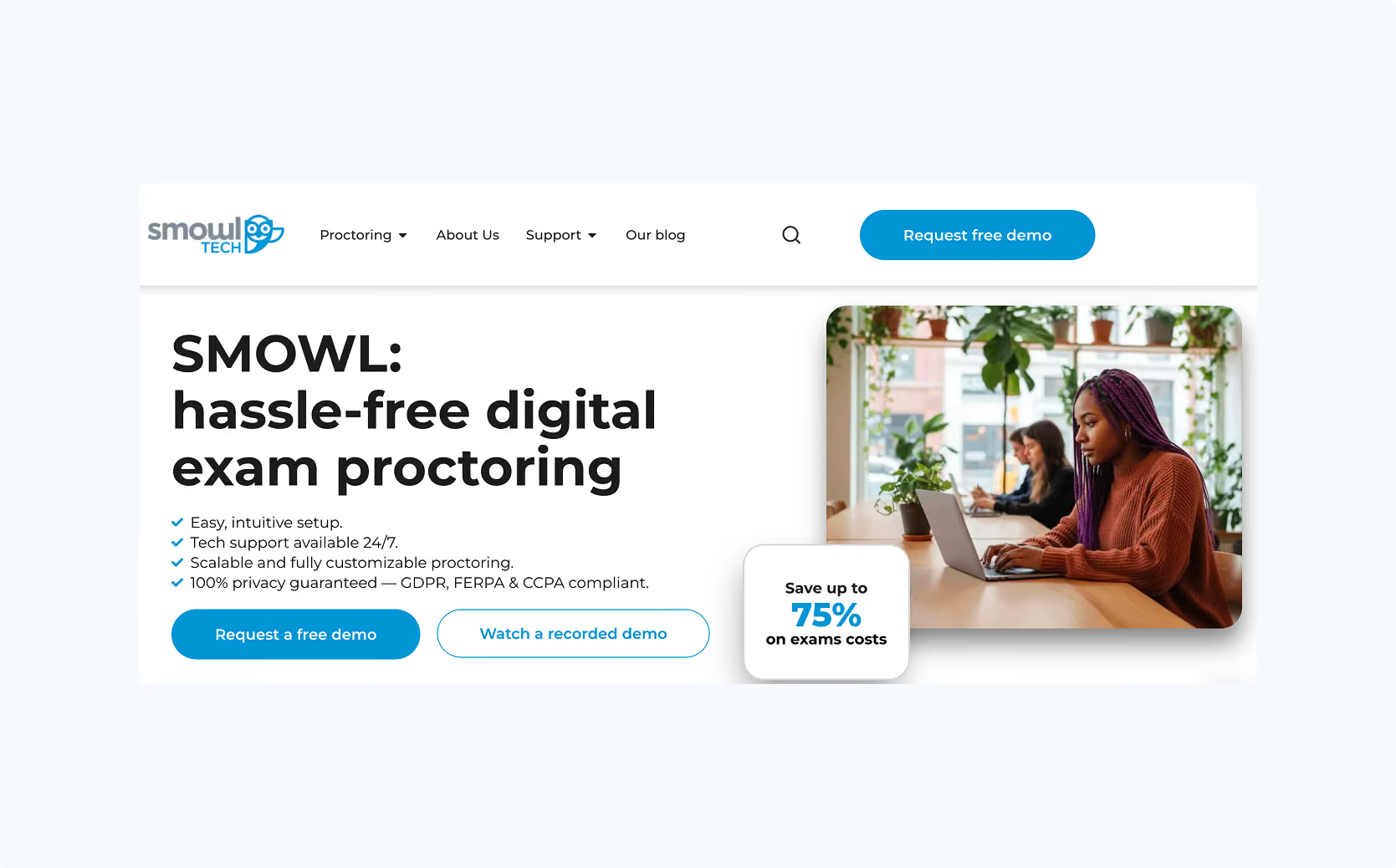
SMOWL is primarily an identity verification and monitoring tool. Before the exam begins, the platform confirms that the right student is sitting down using facial recognition and identity checks. During the assessment, it takes periodic snapshots of the student's face, screen, and environment, and uses AI to flag behavior that warrants a closer look after the exam.
SMOWL offers both a browser extension and a desktop monitoring app. The extension provides lightweight controls within the browser. The desktop app extends visibility beyond the browser, logging active applications, connected devices, and clipboard activity. Note that this is logging, not blocking. Applications are not restricted, and any review of that activity happens after the exam.
That distinction is central to how SMOWL works. The platform is built around observation rather than prevention. Because applications run on the student's own device, access to personal files, background apps, or built-in AI features within those programs is not technically blocked. What SMOWL provides is a record of what happened, which institutions can use to investigate if something looks off.
For institutions where verifying student identity is a primary concern, that approach makes sense. As with other monitoring-based tools, the practical considerations are the same: post-exam review takes time, scales with exam volume, and comes with privacy and data retention obligations that need to be addressed.
Best suited for
- Institutions looking to conduct remote exams
- Institutions looking for reliable identity verification

How to choose the right tool for Moodle
There is no single “best” solution. The right choice depends on your setup.
You should evaluate:
- Are you looking to secure in-person or remote exams?
- Do you want to prevent cheating or monitor it?
- Are your exams high-stakes or low-stakes?
- Do you need to support desktop applications?
- How important is student privacy?
- Do you have the capacity to review recordings?
A useful rule of thumb:
- Prevention (lockdown) is best for in-person, high-stakes exams
- Monitoring (proctoring) is best for remote exams
If your goal is to prevent cheating during in-person digital exams, Schoolyear is built specifically for that use case. It works on both managed and student-owned devices, supports application-based exams, and avoids the need for recording students.