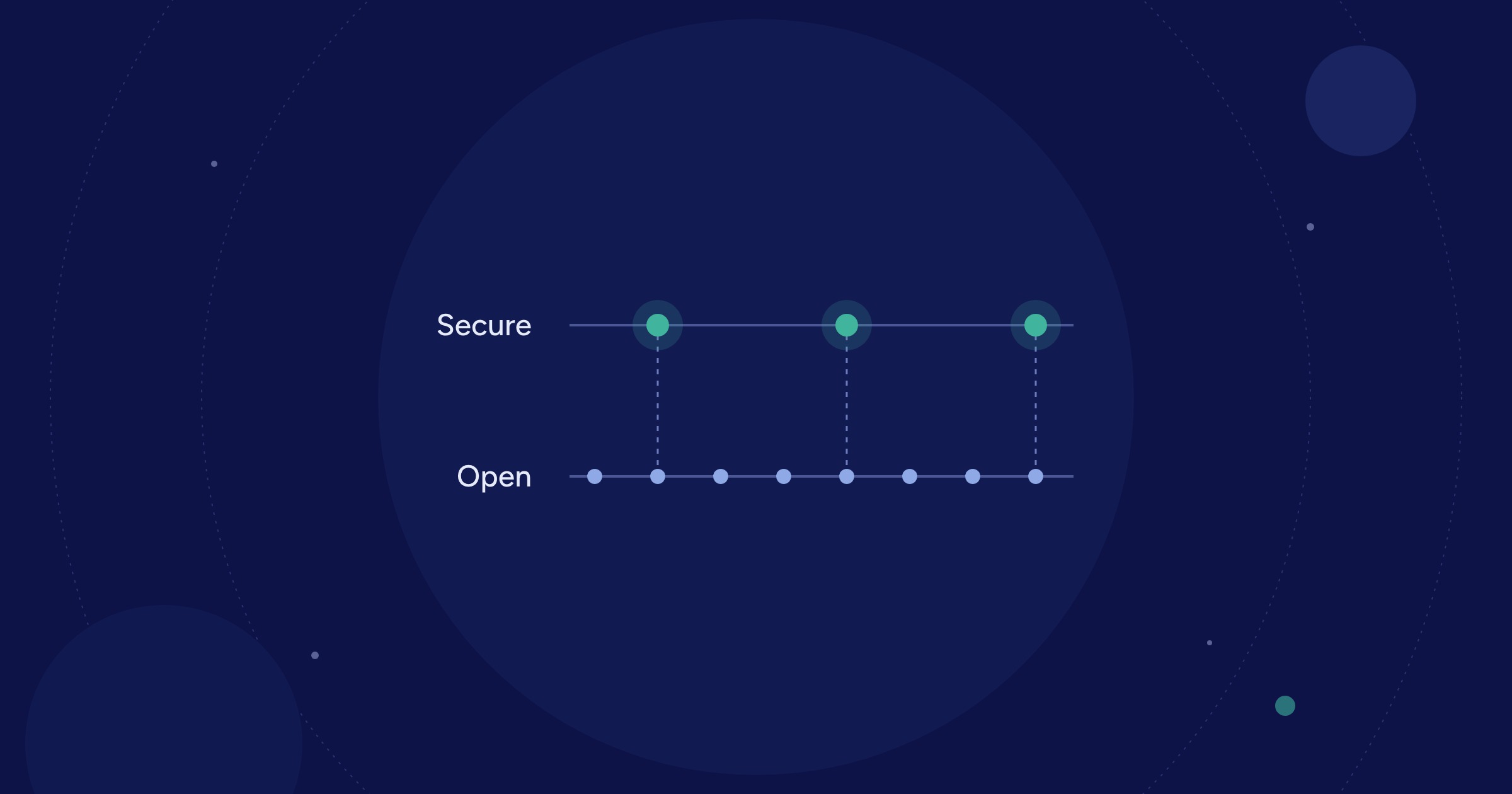
Legacy lockdown browsers like Respondus and Safe Exam Browser can only allow or block a desktop app as a whole, so built-in AI tools like Copilot stay within reach. Schoolyear runs applications in a secure environment, where educators decide exactly which features are available inside each app.
Skills that used to be tested in take-home assignments, like programming in VS Code or building financial models in Excel, are increasingly being assessed in person.
This forces institutions to rethink how they secure assessments, because the legacy lockdown browsers often used for traditional knowledge-based exams were simply not built for this. They can block and sometimes allow an application, but they can't control features inside of apps, such as Copilot in Excel.
In this article, we take a closer look at what the two biggest legacy lockdown browsers can and can't do, based on their own documentation, and what to use instead when your assessment includes applications.
Can Respondus LockDown Browser control what happens inside desktop apps?
By default, Respondus LockDown Browser blocks all other desktop applications during an exam. It can’t control features inside applications.
With Respondus Monitor, educators can let students switch to Excel or Word while recording the student's screen. Any feature inside of the app that the student could use to cheat (such as Copilot, an add-in, or access to a cheat sheet saved in their personal files. And this option only covers Word and Excel, not applications like SPSS or RStudio.
As a result, someone has to watch hours of recordings to check whether a student broke the rules. And because an add-in or an AI tool takes a single click to open, misuse is very hard to spot on video.
In an article, Respondus explains that institutions should tell students which features not to touch, while using the recording as a 'deterrent'.
Can Safe Exam Browser control what happens inside desktop apps?
Safe Exam Browser goes further than Respondus. On Windows, educators can add any desktop app as a permitted process, so students can switch between the exam and, for example, RStudio.
But once an app is allowed, Safe Exam Browser has no say over what happens inside it. Its own manual states that it can't stop permitted apps from accessing the file system or the internet: "SEB only has a URL filter for the built-in browser."
And it's not just AI extension like Copilot or Claude becoming part of many desktop applications. In RStudio, for example, students can install packages from the internet, including ones that connect to ChatGPT, or open online documentation from the Help panel. We list more of these routes in our article on why local application whitelisting isn't secure for BYOD exams.
The only way to use applications securely in an assessment with Safe Exam Browser, is by taking extra measures. On managed computers, IT can build policies that make certain features unavailable. On student-owned laptops, those measures can't be enforced, because students are the administrators of their own devices.
So with Safe Exam Browser, it's all or nothing: an app is either blocked, or available with everything in it, Copilot included.
How Schoolyear secures desktop apps during assessments
Schoolyear gives educators control over what students can access inside applications during an assessment.
Students can work in apps like Excel, RStudio, MATLAB or VS Code, but the app doesn't run locally on their laptop. It opens in a secure environment where AI assistants, personal files and cloud drives are out of reach. And because the app doesn't run on the student's own laptop, every student works with the same software version and gets the same performance.
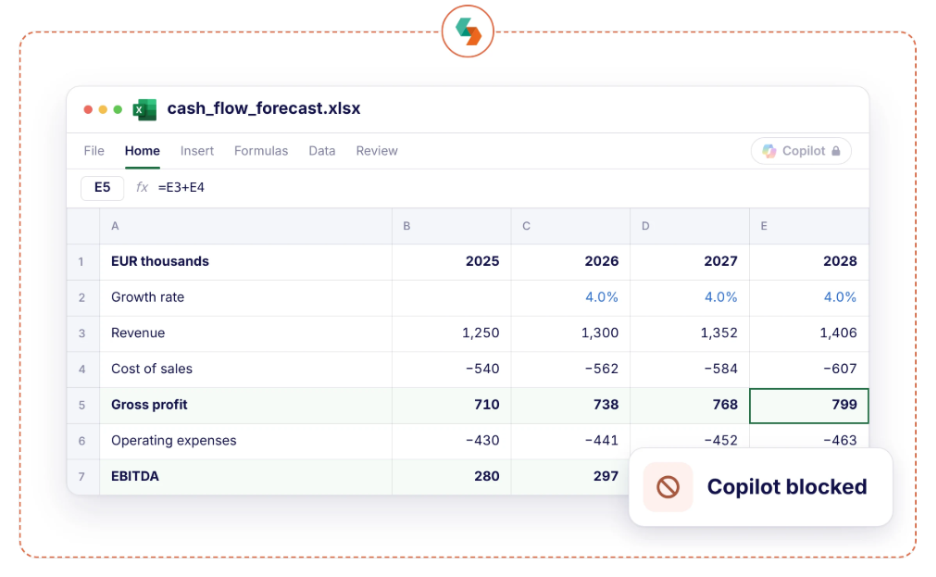
In Excel, for example, you can turn Copilot off while allowing the Solver add-in. Anything you haven't allowed simply isn't available, so nobody has to spend hours reviewing recordings afterwards.
Learn more about Schoolyear in a short demo
Share this